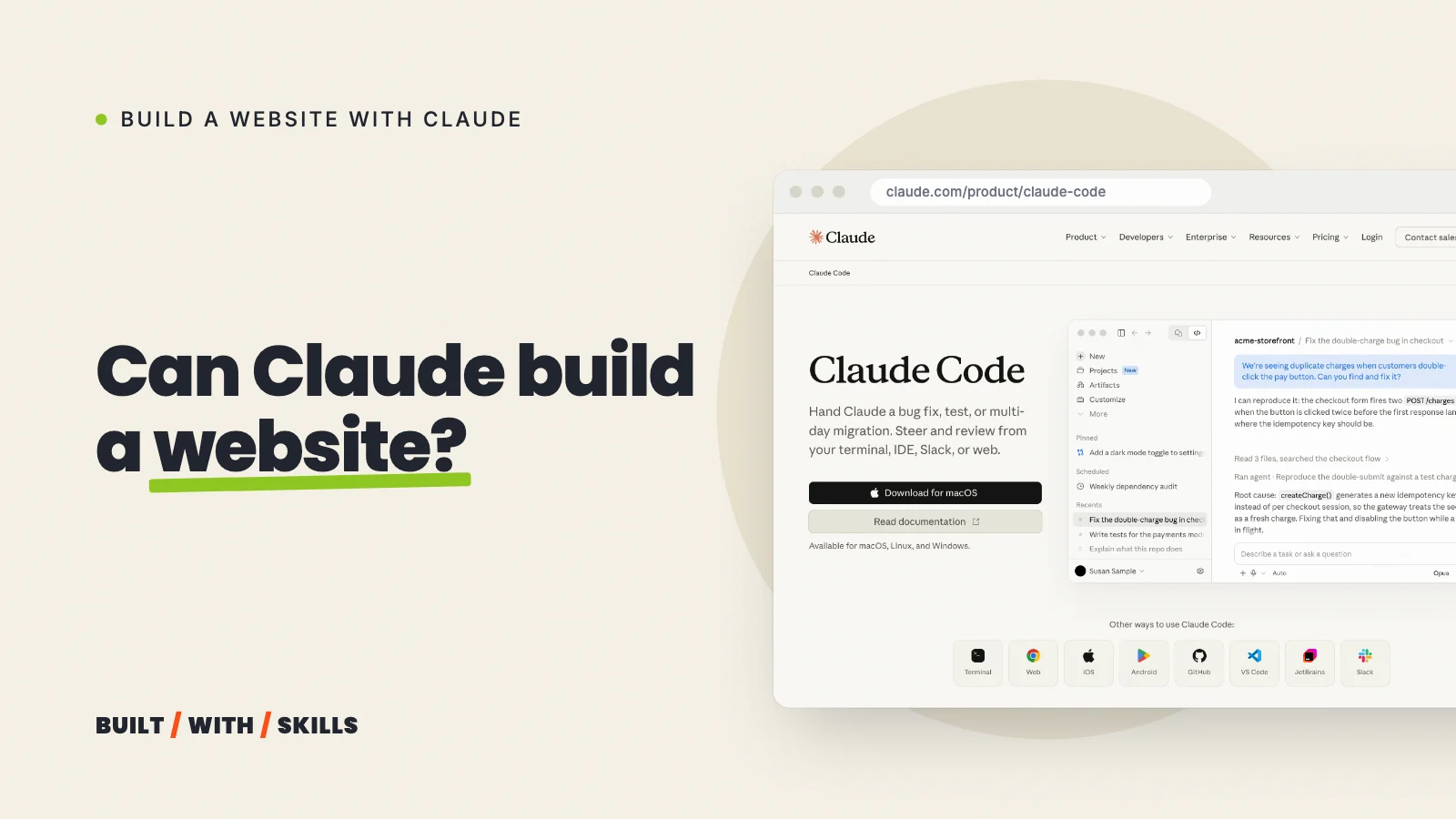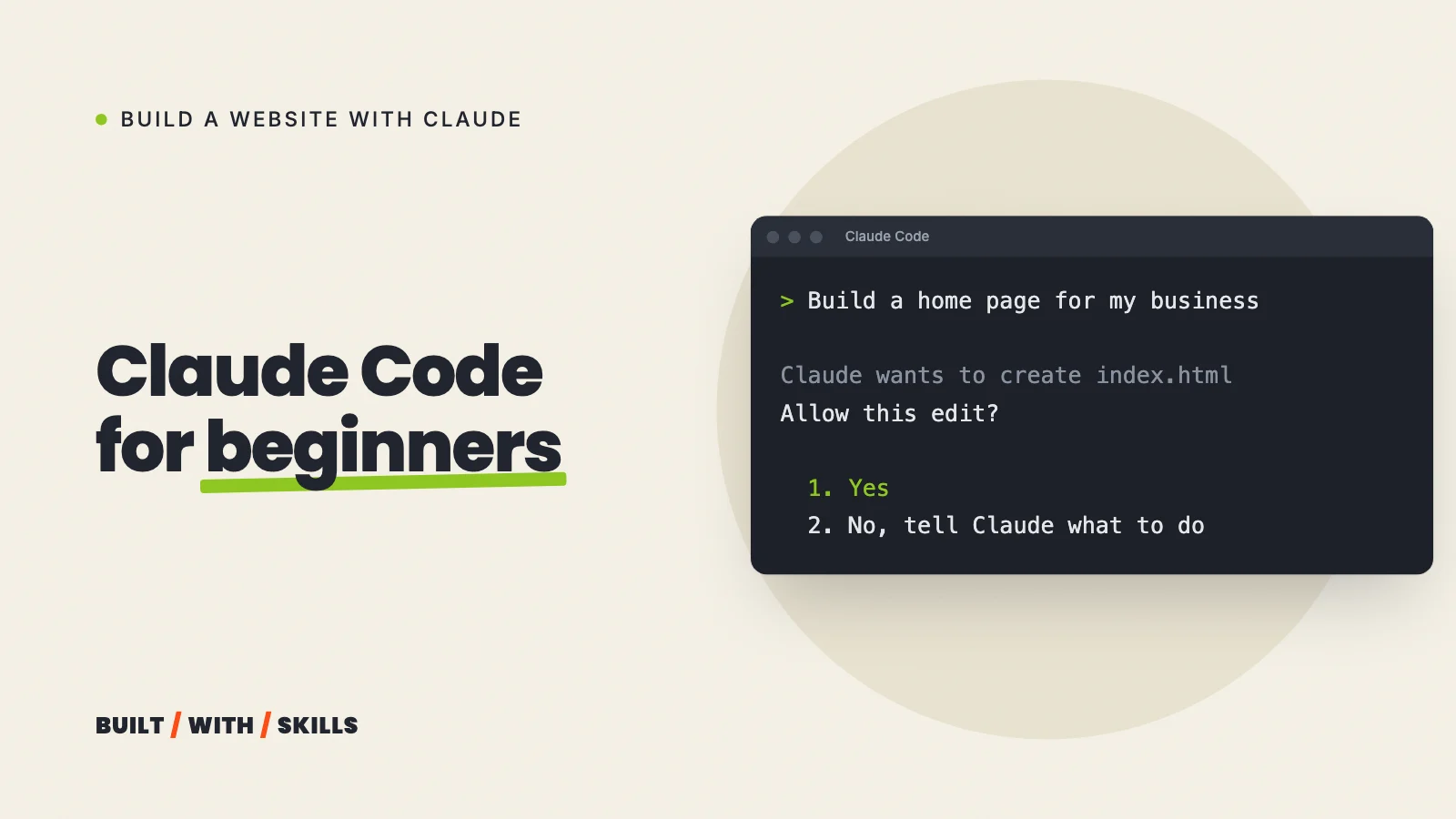

Can you use Claude as your website builder and end up with a proper site, with several pages on your own domain that Google can find, without writing the code yourself?
Yes, if you use Claude Code. It’s Anthropic’s coding agent, and it works on real files in a folder on your computer, so what you finish with is a website you own and can host anywhere rather than being locked in by a provider or host.
We build our own sites this way, including the one you’re reading. The project started on 3 August 2026, and by 25 October it had 86 commits, 24 of them co-written by Claude Code. It runs on Astro (the free site builder this guide suggests) with Tailwind for the styling.
This page is the process that we follow:
- what to decide before you open anything
- how to get Claude Code running, and what to ask for first
- how to stop it looking like every other AI-built site
- which free hosts let you run a business site, and how to connect your domain
- what it all costs, and what to do when it goes wrong
Each step links to a guide that goes deeper.
What you need before you start#
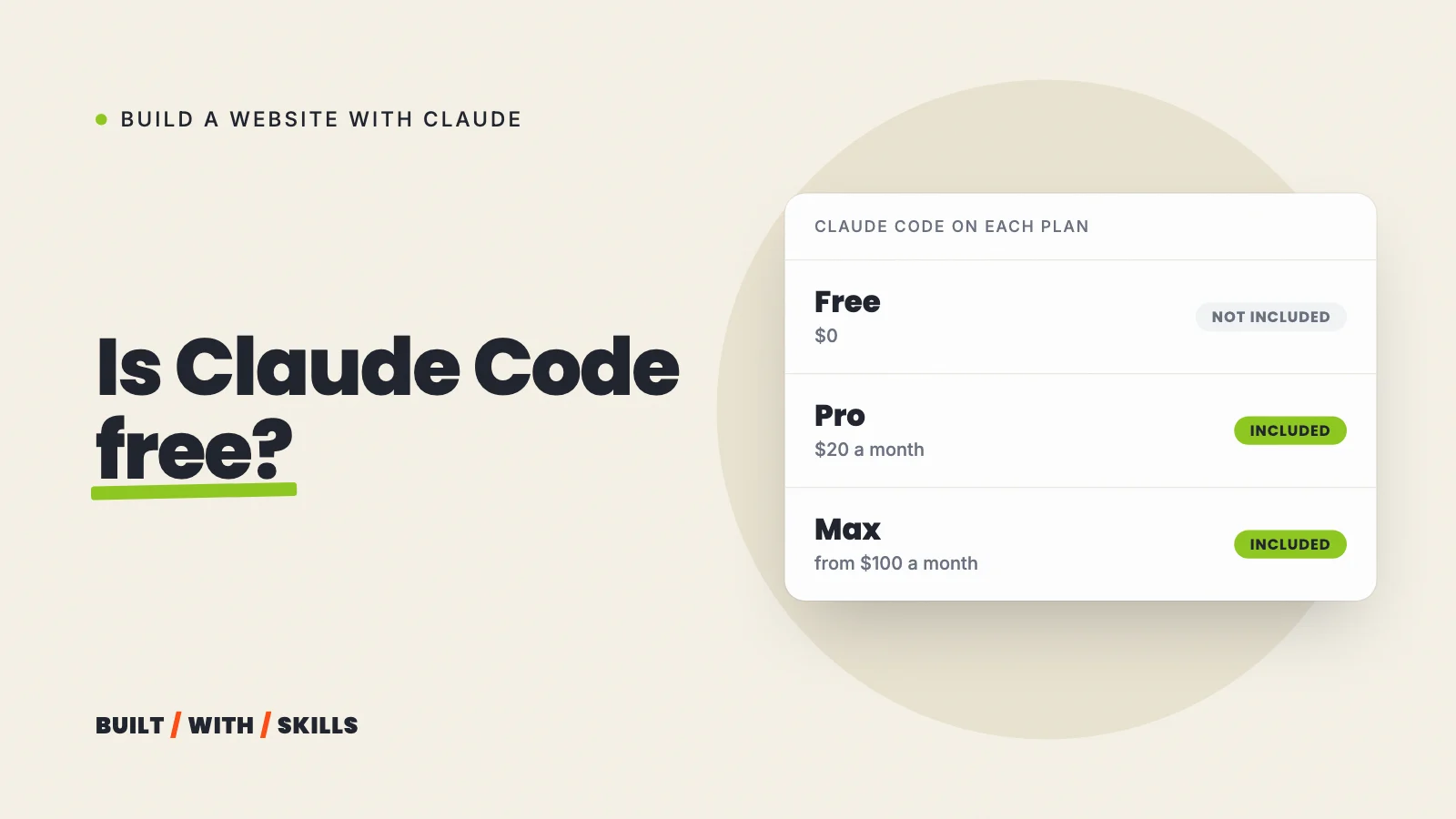
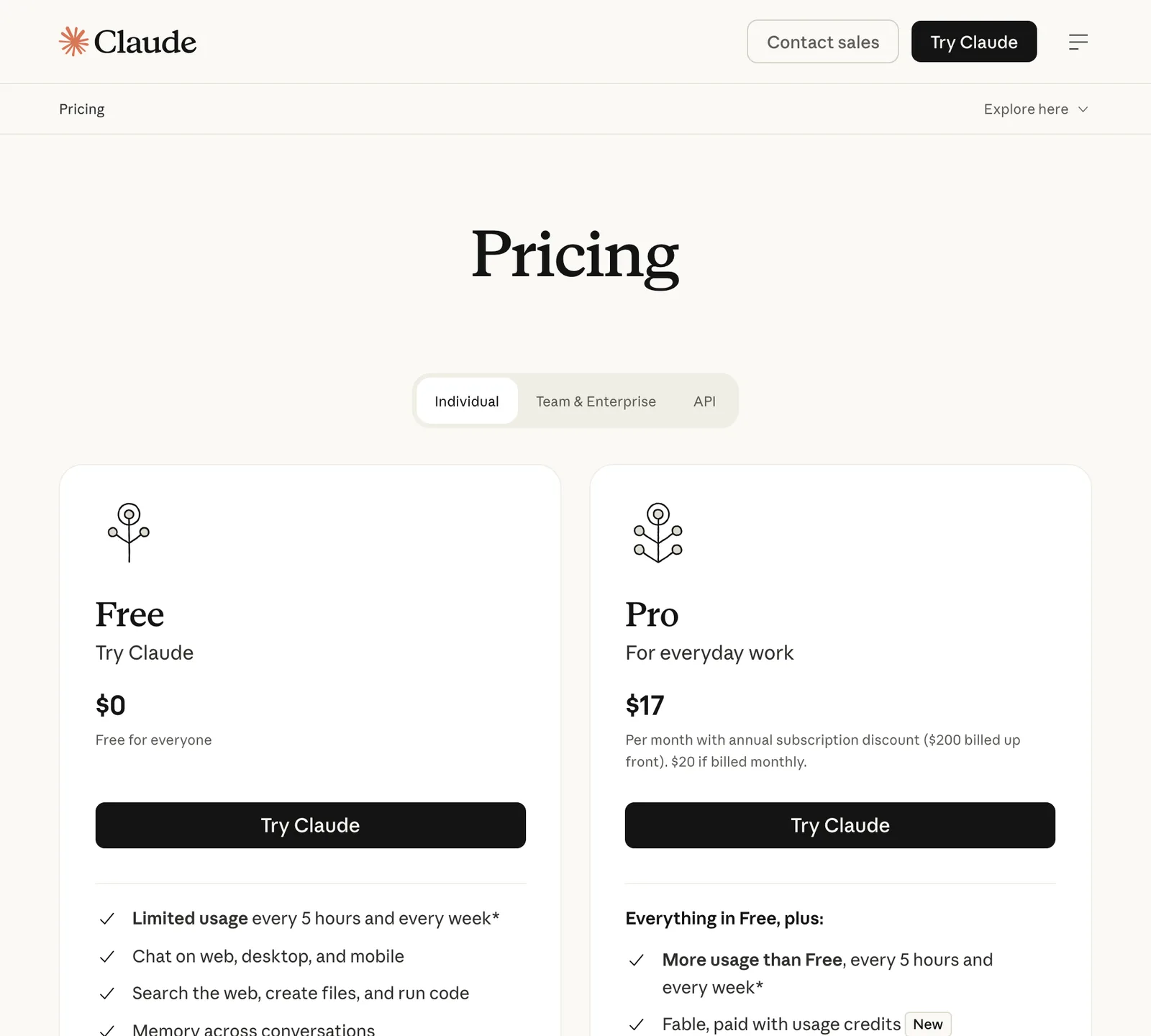
- A paid Claude plan. Claude Code isn’t on the free plan, and Pro is the cheapest way in, at $20 a month or $200 a year as of October 2026 on Anthropic’s pricing page. Is Claude Code free? compares every plan.
- A computer that can run it. Anthropic’s setup docs ask for macOS 13 or later, Windows 10 (version 1809) or later, or Ubuntu 20.04 or later, with at least 4 GB of memory.
- A GitHub account, free, so your project has a home online that a host can read from.
- A hosting account, also free. Step 6 explains why we’d start with Cloudflare.
- A domain name, once you know what the site is called. Cloudflare Registrar says it “does not mark up domain prices at all”, so a domain bought there costs what the registry charges, and you’ll see the exact price when you search for your name.
That’s the whole shopping list. You won’t need a designer, a developer or a paid website builder.
Step 1: decide what the site is for#
Claude builds what you describe, so a vague brief gets a vague website. Before you open anything, write down three things:
- Who the site is for, in one sentence.
- The one thing you want a visitor to do: book, buy, call or sign up.
- The pages you need. For most small businesses that’s a home page, an about page, one page per service and a contact page.
Then gather what only you have, meaning your prices, your opening hours, a few lines about why you do this, photos of you and your work, and any reviews customers have already left you. Claude doesn’t know any of it, and if you leave gaps it will happily fill them with something plausible and wrong.
That note becomes your first prompt. It’s worth ten minutes.
Step 2: install Claude Code#
Claude Code runs in the Claude desktop app, in a terminal, inside VS Code and on the web at claude.ai/code. Never used a terminal? Use the desktop app: Claude Code is built in, under the Code tab, and there’s nothing else to install.
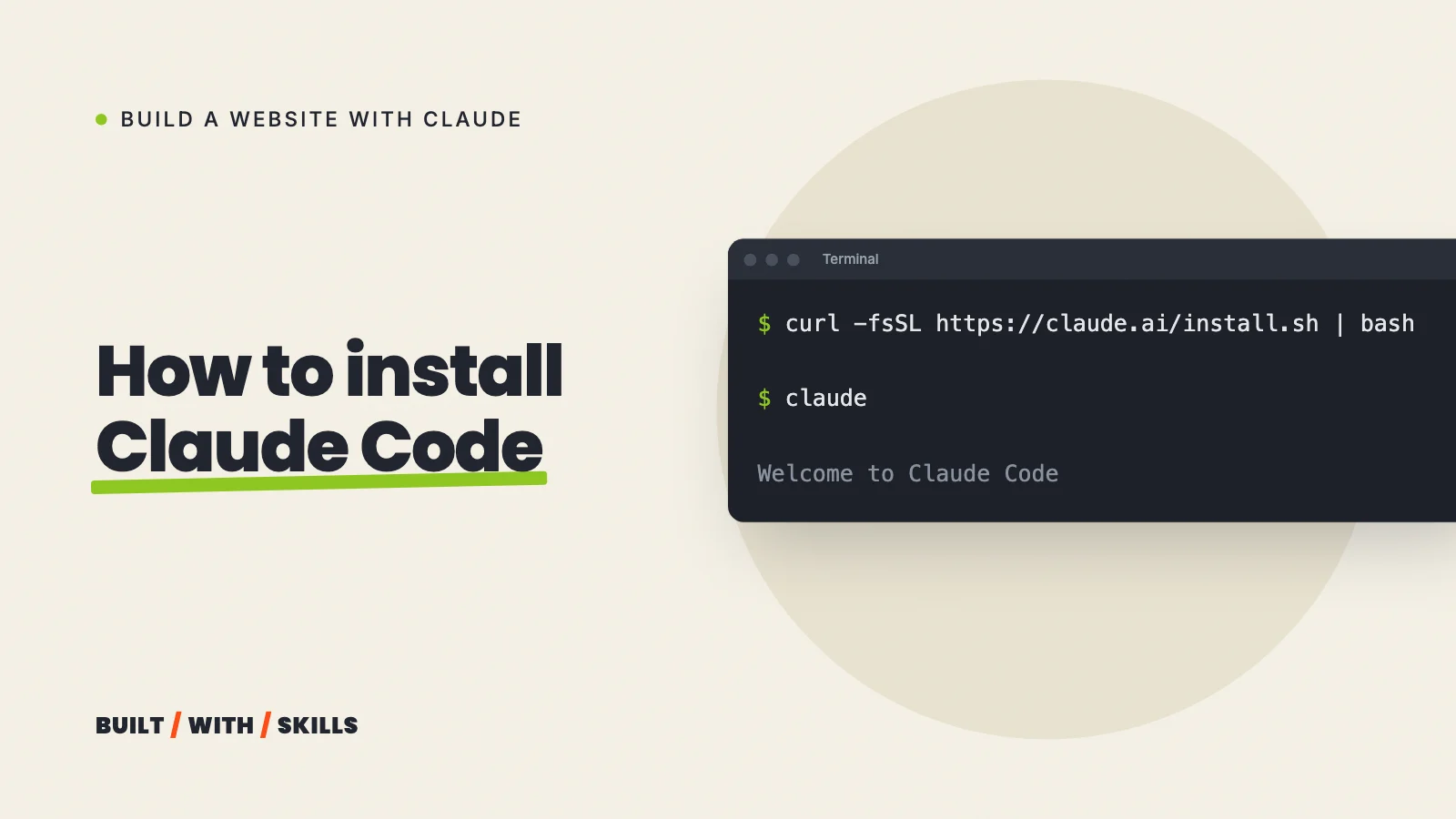
If you’d rather use the terminal, the official install on a Mac or Linux is one line:
curl -fsSL https://claude.ai/install.sh | bashOn Windows, in PowerShell:
irm https://claude.ai/install.ps1 | iexThen make an empty folder for your site, open it, type claude, and sign in with your Claude account when it asks.
curl -fsSL https://claude.ai/install.sh | bashNo progress shows while it downloads. When it's done, open a new terminal windowclaude --versionPrints a version number followed by (Claude Code)cd my-websiteclaudeOn first use it asks you to log in, then the prompt appears with the version, model and folderBuilding a website, you’ll soon be asked about two free tools many computers don’t have yet: Node.js, which runs site builders such as Astro, and Git, which saves versions of your work so you can always go back. Don’t go hunting for them; Claude Code will say when it needs them and talk you through each install.
node --versionv26.12.1git --versiongit version 2.56.0How to install Claude Code covers every install route and the common errors, and Claude Code for beginners walks through your first session, including what the permission prompts mean.
Step 3: plan the site, then build one page#
Paste in your note from step 1 and ask for a plan before any code. Something like:
I want a website for my dog-walking business in Leeds. It's for busy
owners who work office hours. The one thing I want visitors to do is
book a trial walk. Pages: home, about, services, prices, contact.

Before you build anything, suggest how to set this up as a fast static
site I can host for free, and list the pages and what goes on each.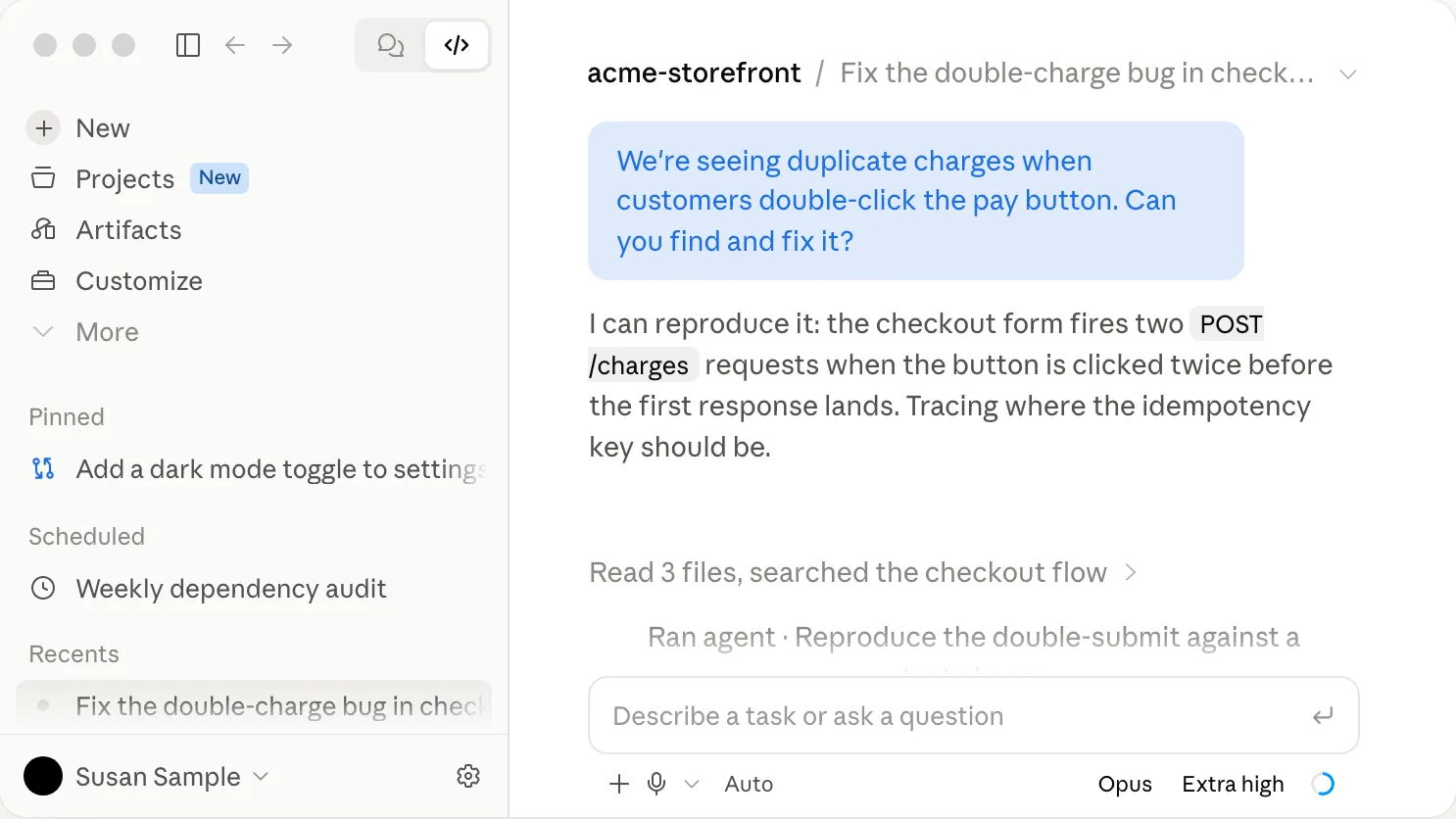
What comes back is usually a static site builder such as Astro, or plain HTML for a very small site. Either is fine. “Static” means the site is a set of finished files with no server working behind each page, which is why hosting it can cost nothing.
npx create-astro@latest pottery-site --template basics --yes --no-gitastro Launch sequence initiated.dir Using pottery-site as project directorytmpl Using basics as project templateTemplate copiedDependencies installedProject initialized!next Liftoff confirmed. Explore your project!Enter your project directory using cd ./pottery-siteRun npm run dev to start the dev server.Read the plan, change what’s wrong in plain English (“I don’t need a blog”), and then let Claude do the work.
Ask Claude to start a preview, then open the page on your laptop and on your phone, click every link and read every price yourself. Tell it specifically what’s wrong (“the phone number is hard to read on a phone” beats “make it better”). Only move on once that page is right, because one page you’ve fixed teaches you what to ask for on the next.
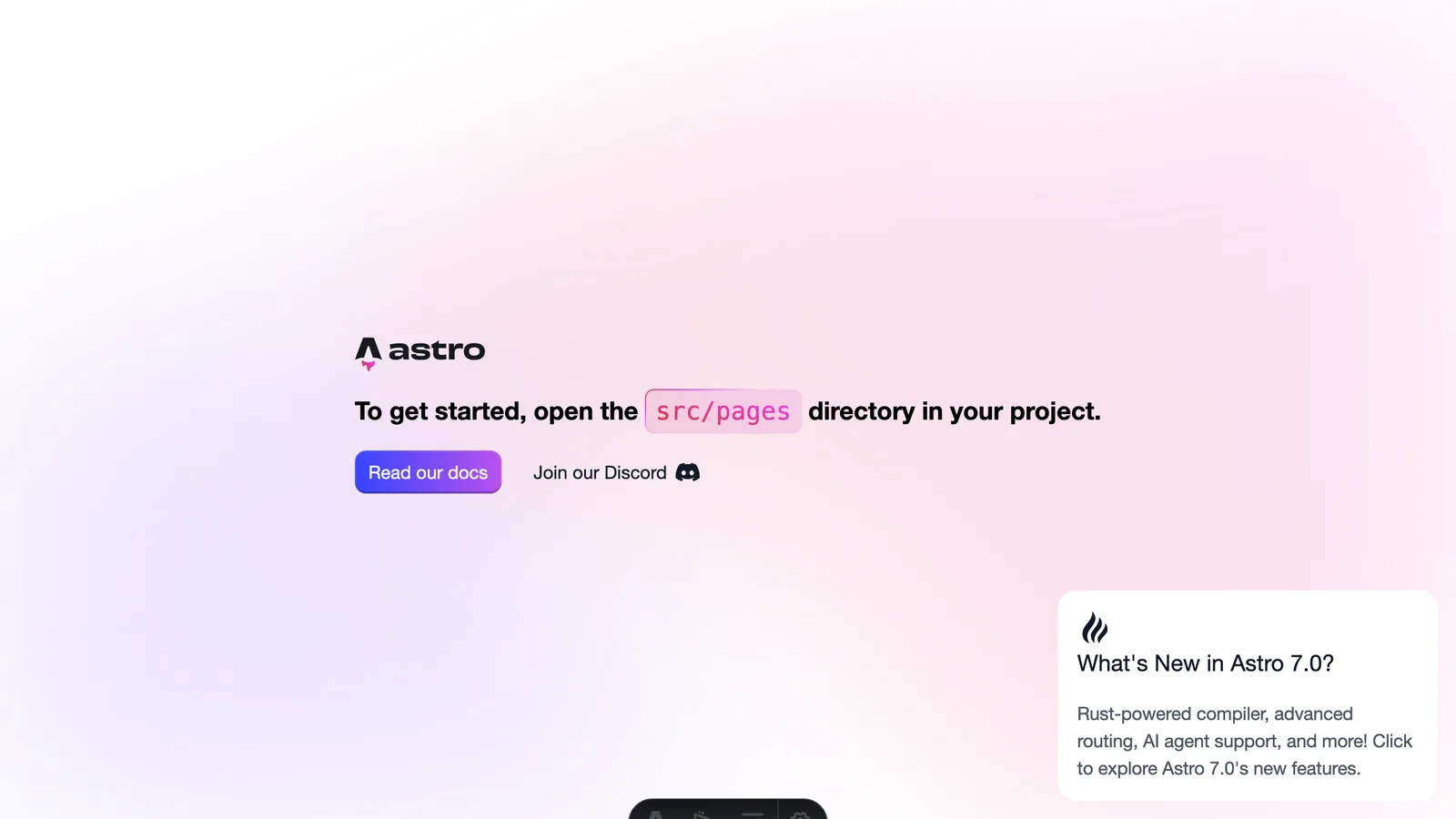
Here’s the thing: Claude is quick to say a job is done, and sometimes it’s wrong. After any long request, ask it to list anything it skipped.
Claude builds. You check.
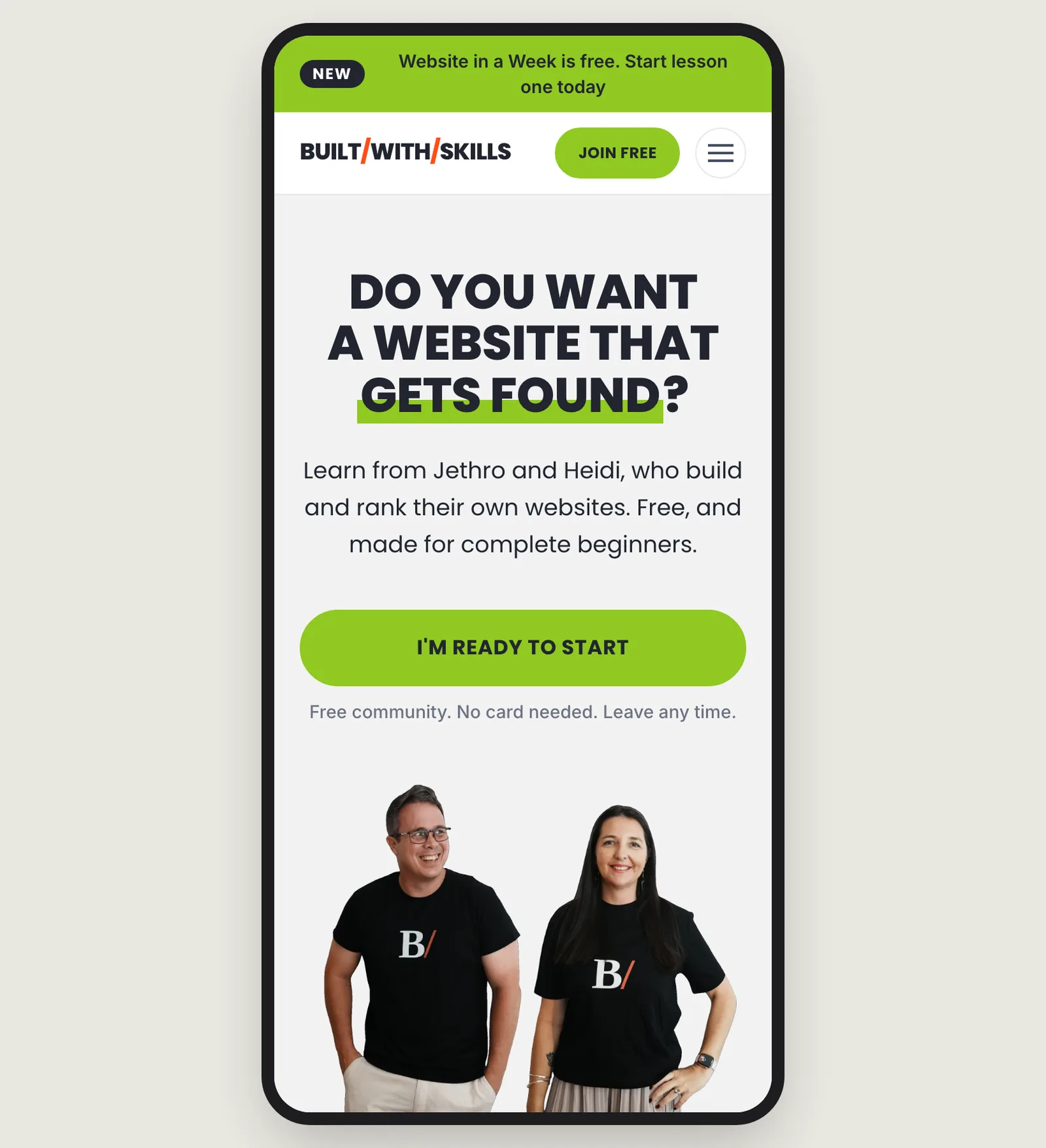
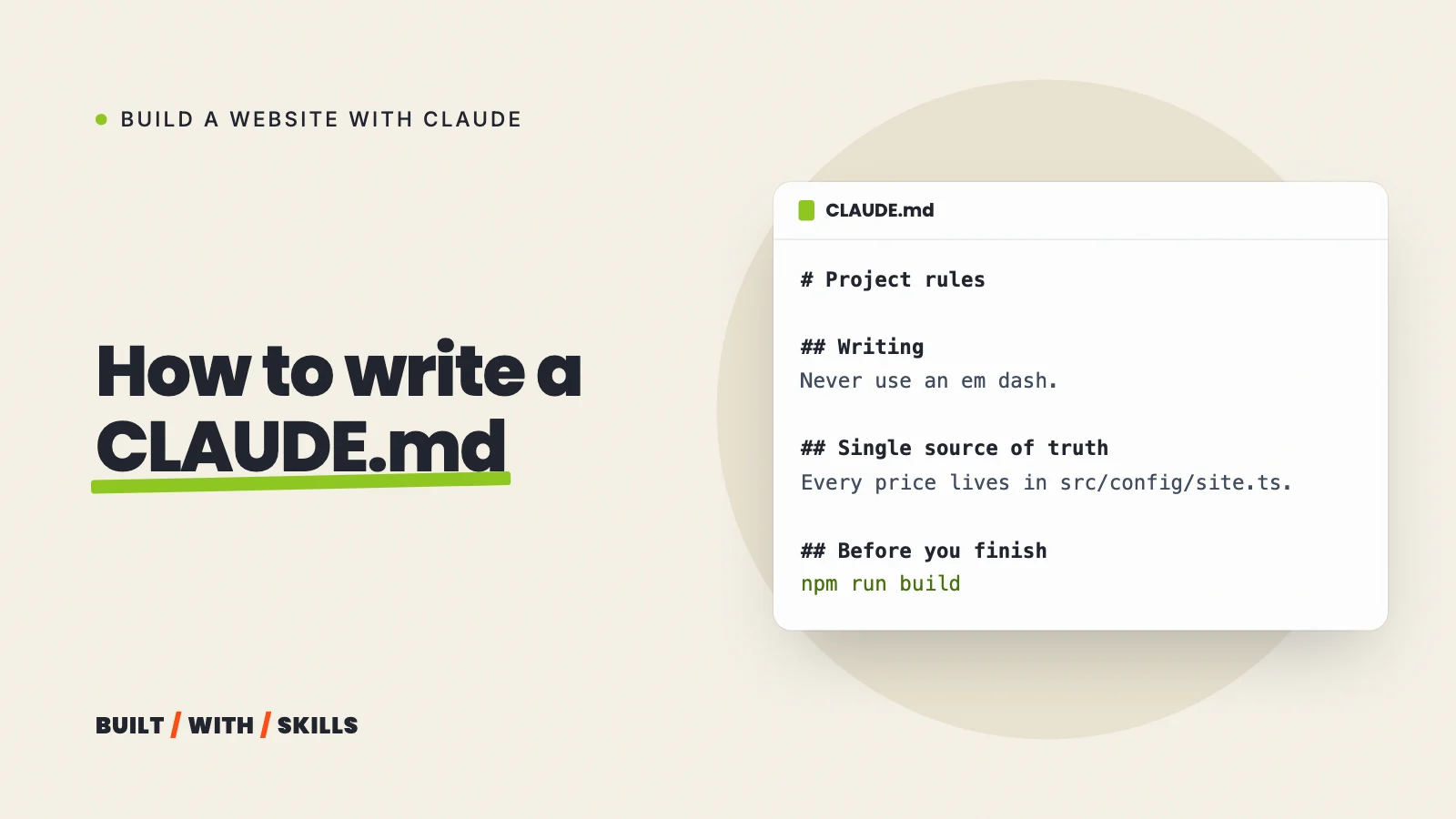
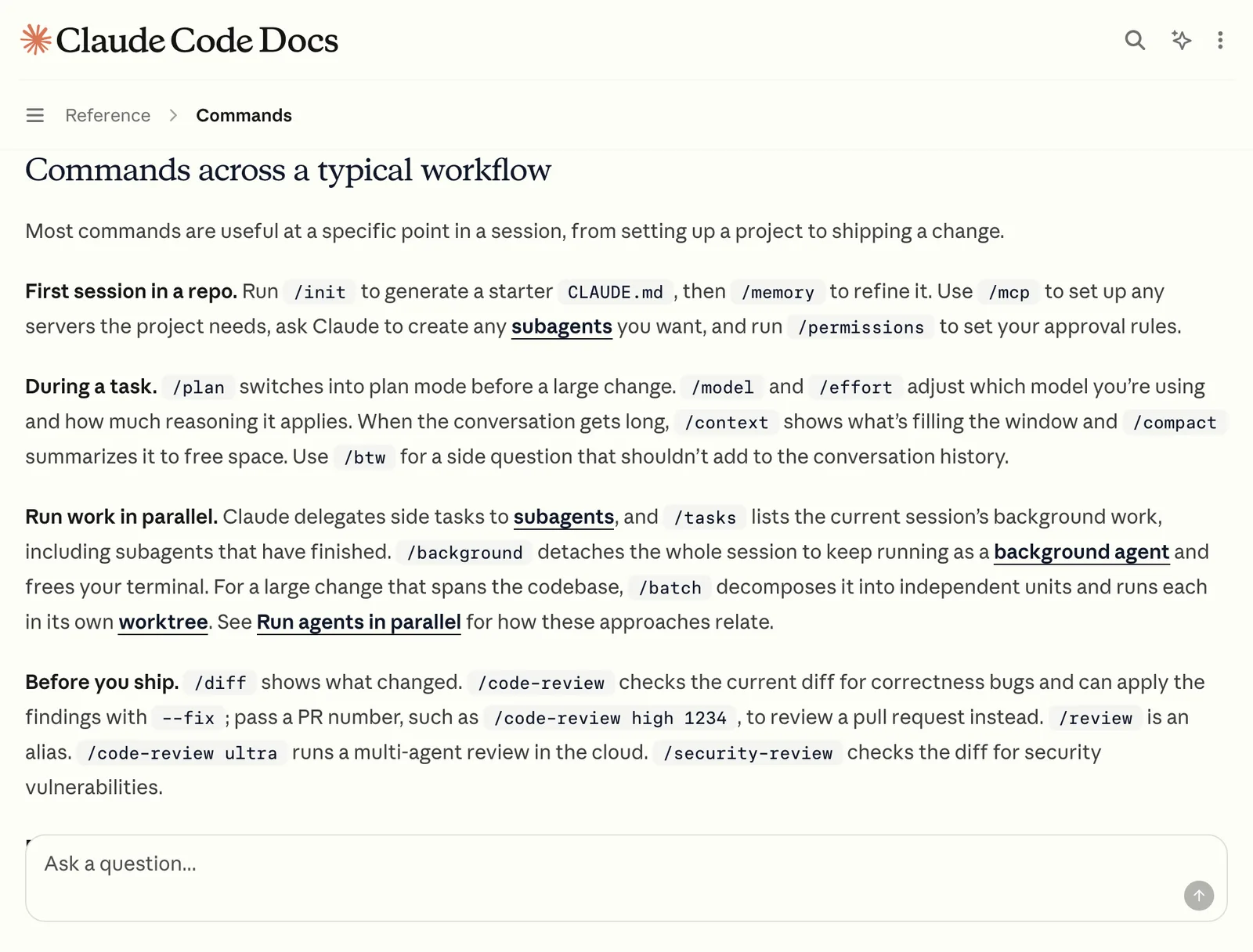
Once you find yourself repeating an instruction, write it down once in a CLAUDE.md file, which Claude reads at the start of every session. How to write a CLAUDE.md file shows the one we use for this site.
Still not sure Claude is up to the job? Can Claude build a website? sets out what each part of Claude can make and where you have to step in.
Step 4: make it look like yours#
Left to its defaults, Claude produces a tidy but familiar website, with a centred hero, three cards and a gradient. You’ve seen it before, and so have your customers.
Two things fix that. The first is a written design brief, a DESIGN.md file that pins down the look in words Claude follows on every change.
Ours names the site we modelled the design on, one lime accent and uppercase headlines. DESIGN.md: what it is and how to write one shows how to write yours.
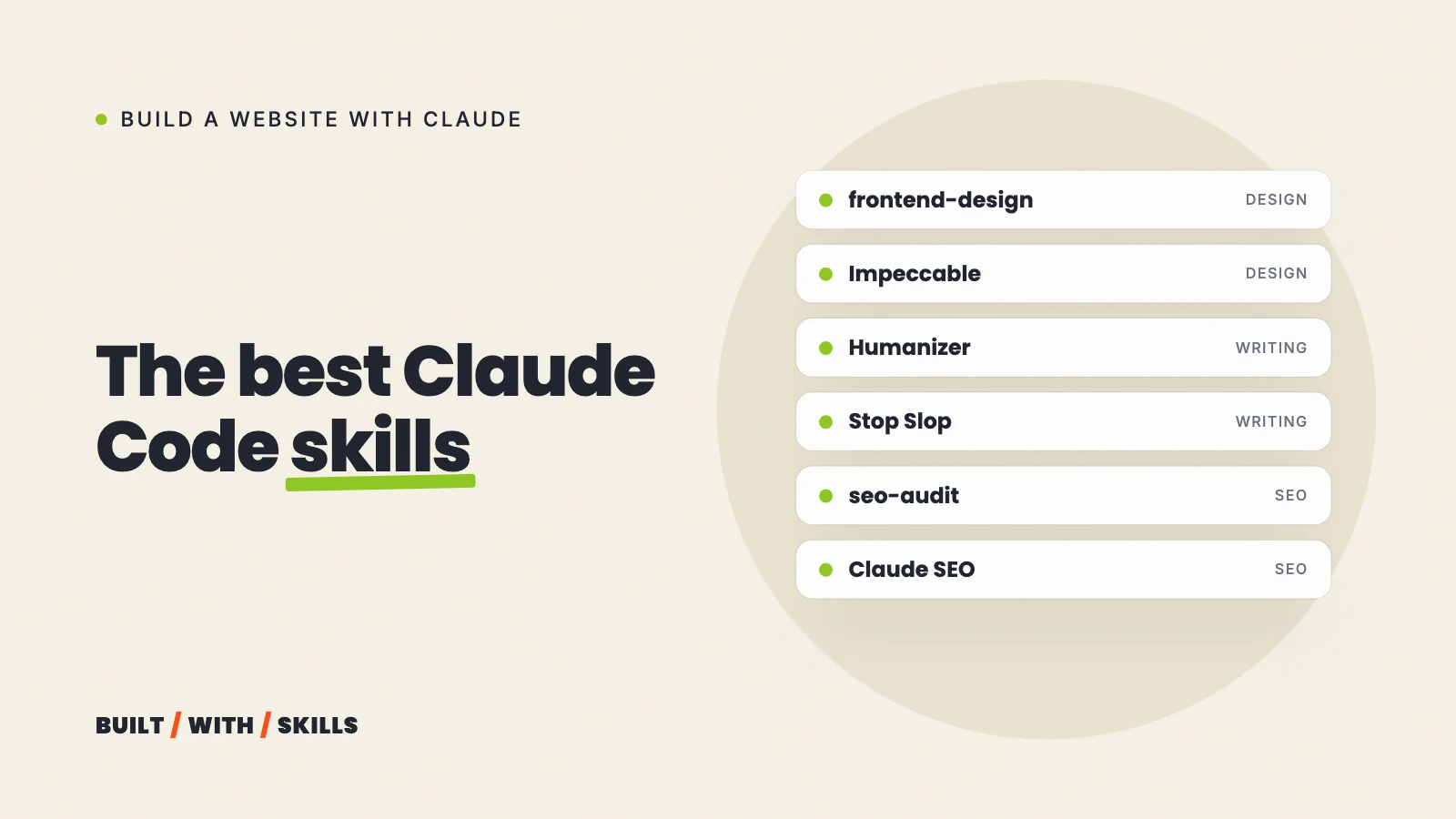
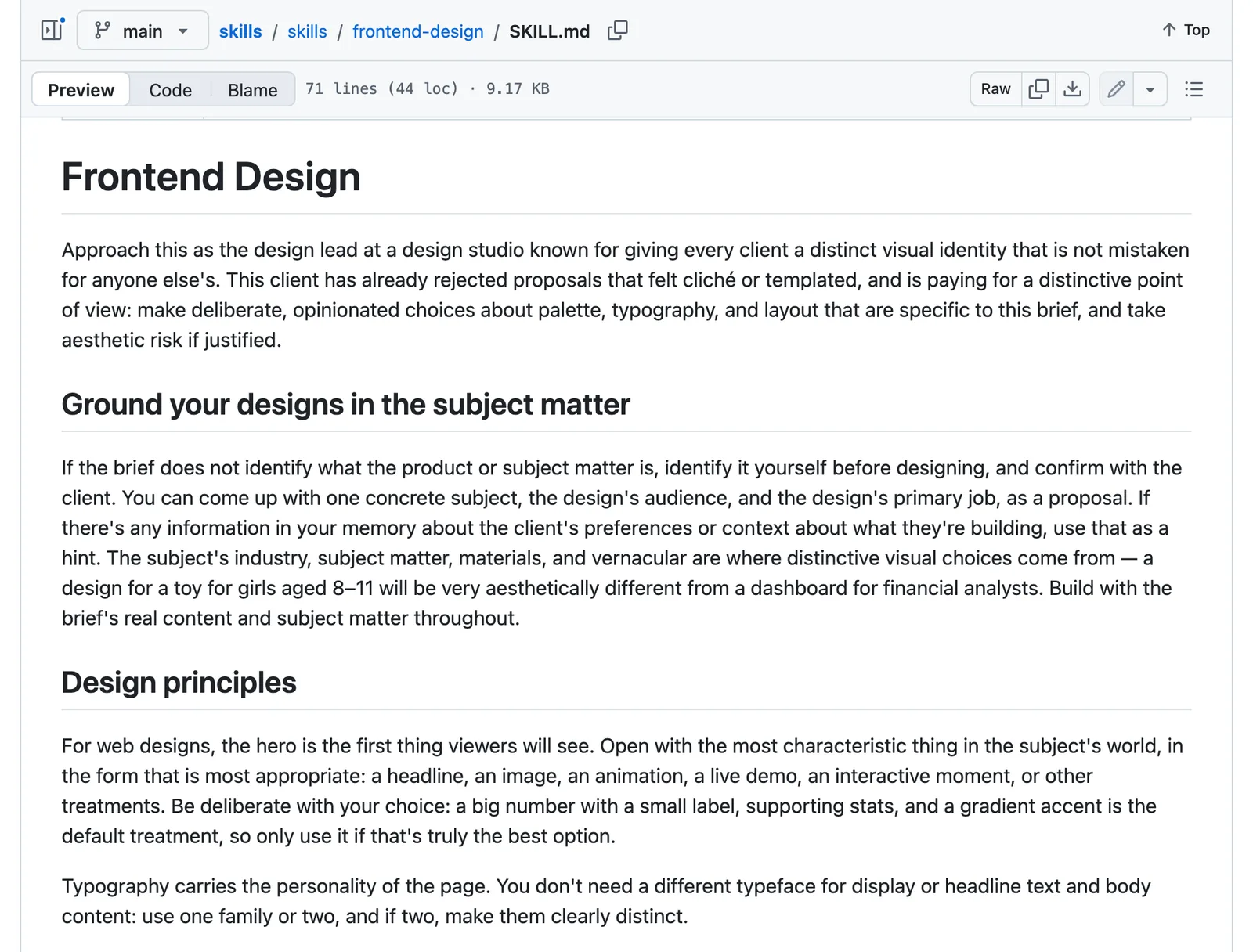
The second is skills. A skill is a folder of written instructions Claude Code loads when they’re relevant, and design skills carry a designer’s rules about type and colour. Two are worth knowing first:
- frontend-design is Anthropic’s own design skill, written to stop Claude making choices that “read as templated defaults.” How to install and use the frontend-design skill.
- Impeccable is a much larger design skill, with commands such as audit and polish. We’ve had it installed in this site’s project. The Impeccable skill, explained.
The rest of our kit is in the best Claude Code skills for building a website, and Claude design skills is our full series on making an AI-built site look designed.
Step 5: write the words yourself, then clean them up#
Why bother, when Claude can write it all?
Because people book a dog walker when the words on the site sound like someone they’d trust with their dog, and AI copy has a sound of its own. So write the first draft of each page yourself, even badly, then let Claude tidy it.
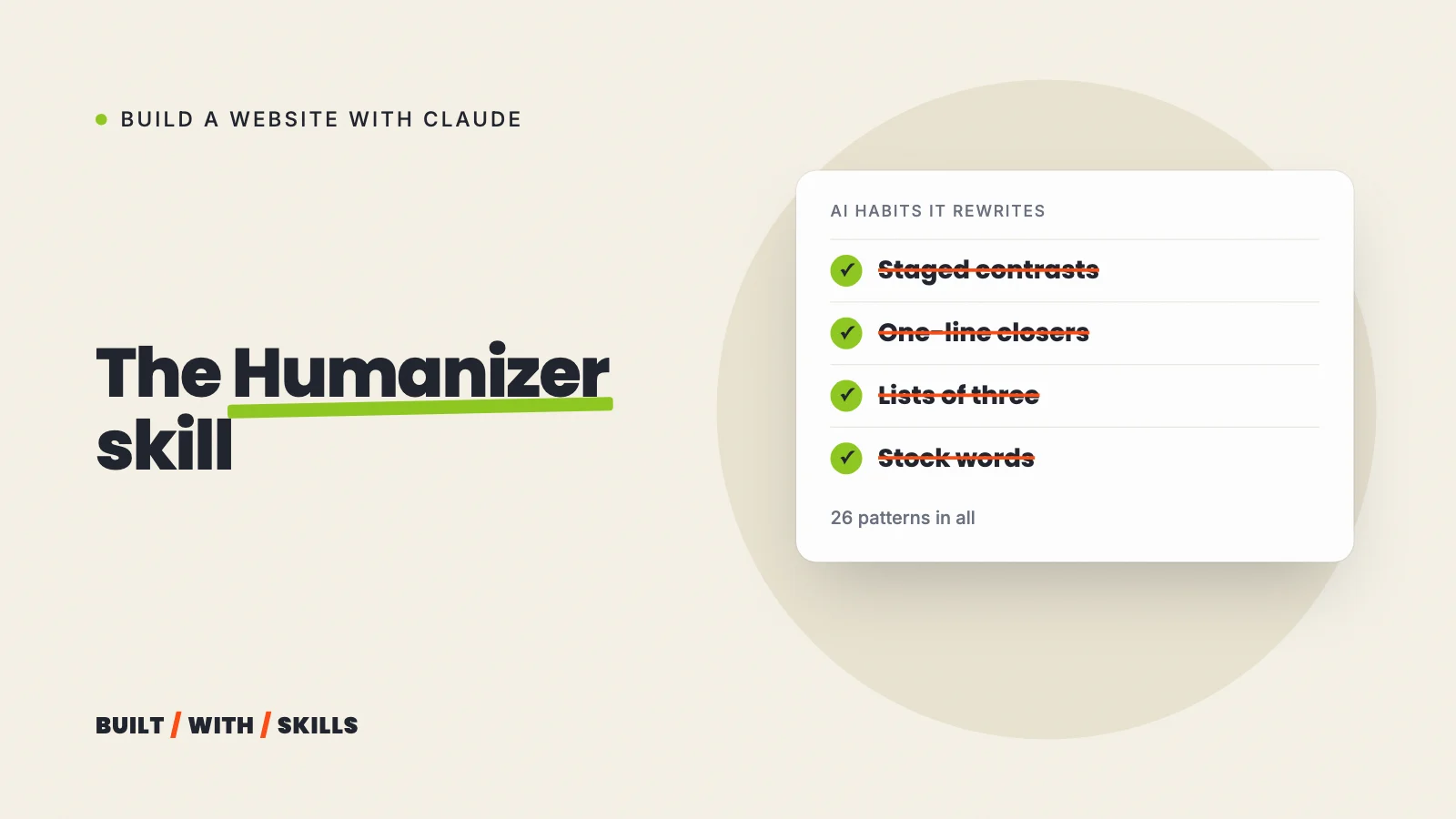
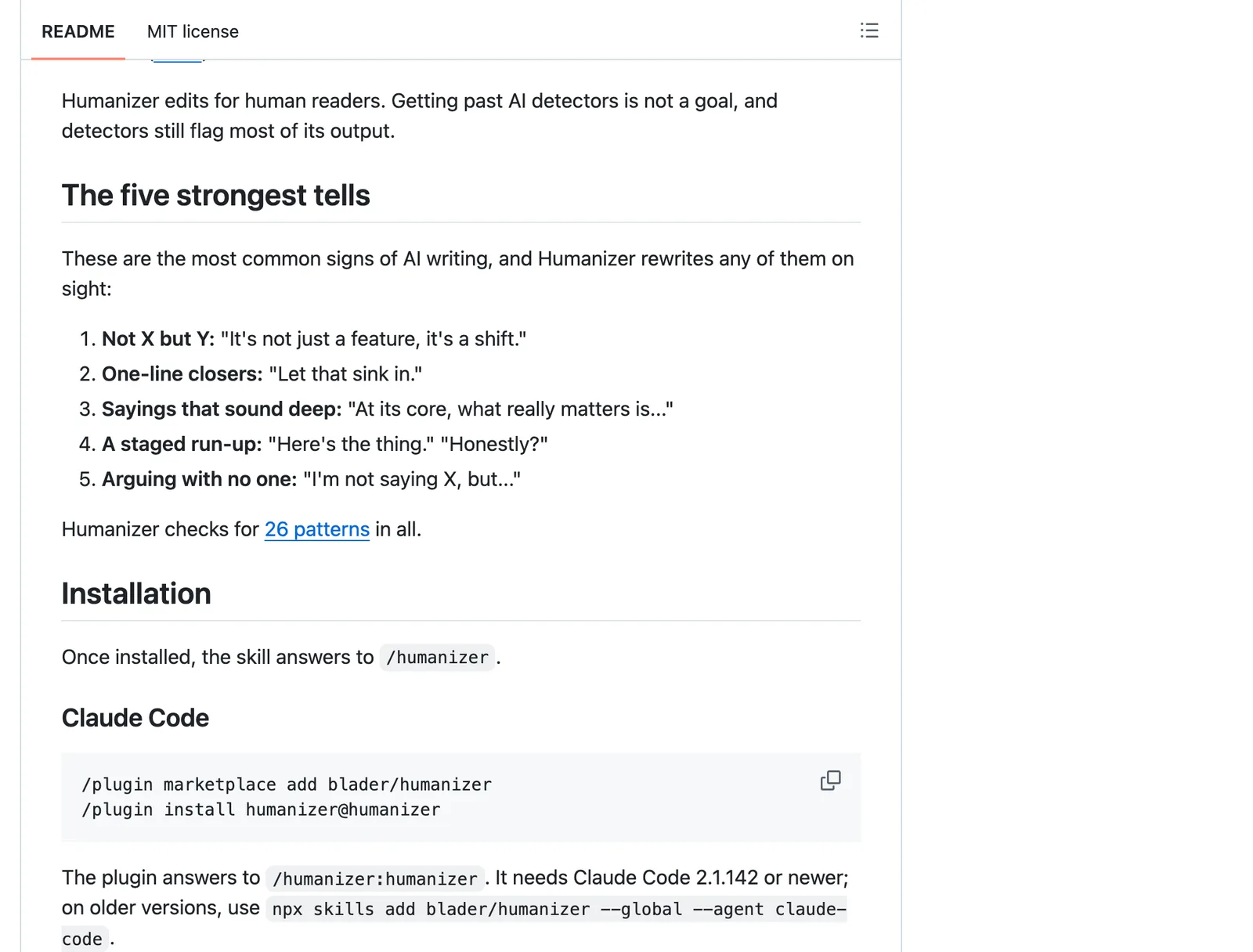
Pro tip: when Claude writes or edits copy, watch for its tells, such as “not just X, it’s Y”, everything in threes and dashes everywhere. The Humanizer skill finds and rewrites them, and our own project rules ban the em dash outright for exactly that reason.
Step 6: put it online on your own domain#
This step has the most new accounts and settings in it, so here it is in order.
Ask Claude Code to put the project on GitHub (it can run every command, once you’ve made the account and approved the sign-in). Then connect that GitHub repository to a static host. From then on, every change you save to GitHub rebuilds the live site by itself, so you never upload files by hand.
Which host? Here’s how the free plans compare, from each host’s own pages as of October 2026:
| Host | Free plan | Business use on the free plan |
|---|---|---|
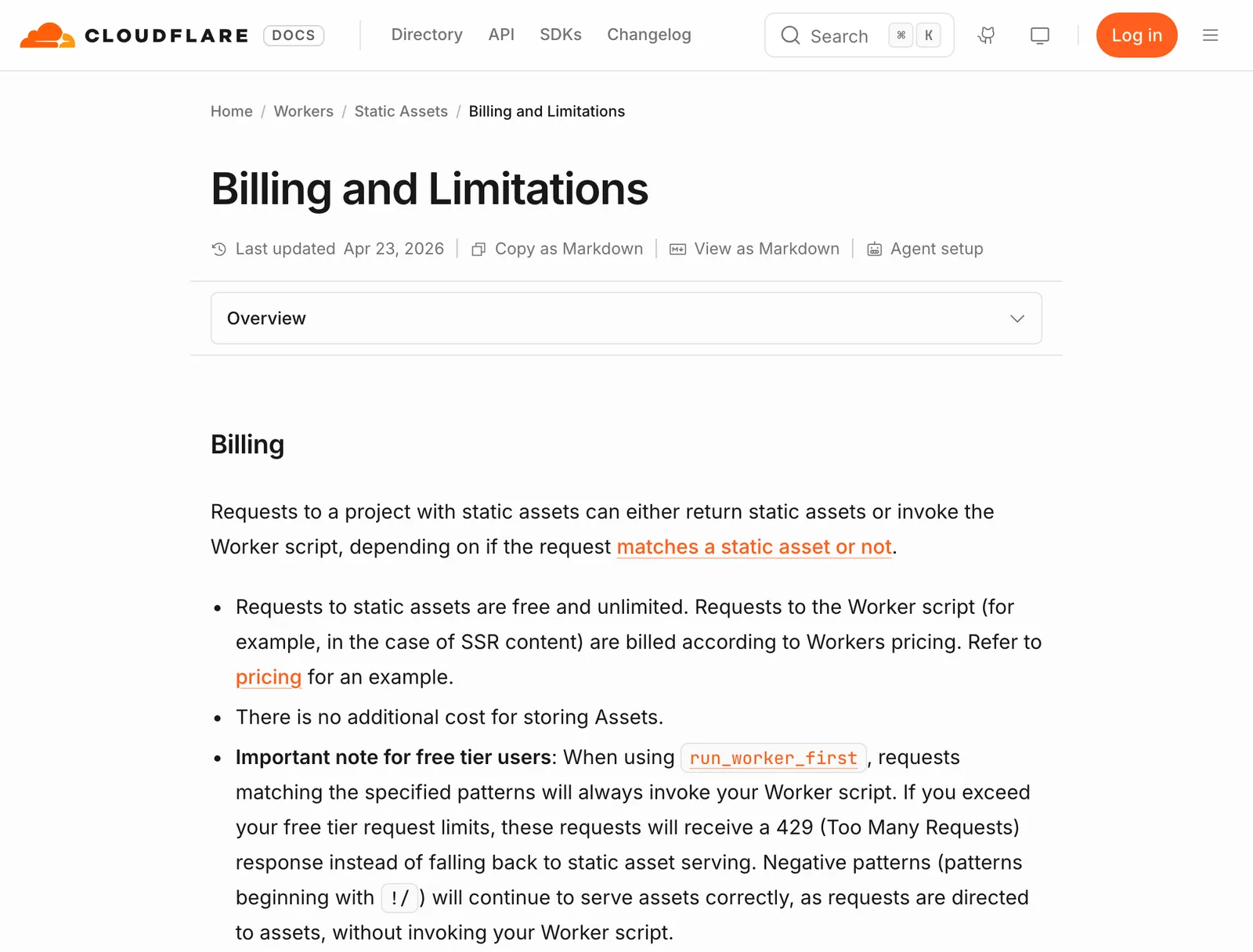
| Cloudflare (Workers) | Requests for static files free and unlimited, custom domains included | No personal-use condition in its pricing or limits pages |
| Netlify | 300 credits a month with a hard limit, custom domains with SSL | No restriction stated, but a busy site can use up the credits |
| Vercel | Hobby plan, 100 GB of transfer a month | “Non-commercial, personal use only”. Pro is $20 a month |
| GitHub Pages | Free with your GitHub account | Not “to run your online business”, in GitHub’s words |
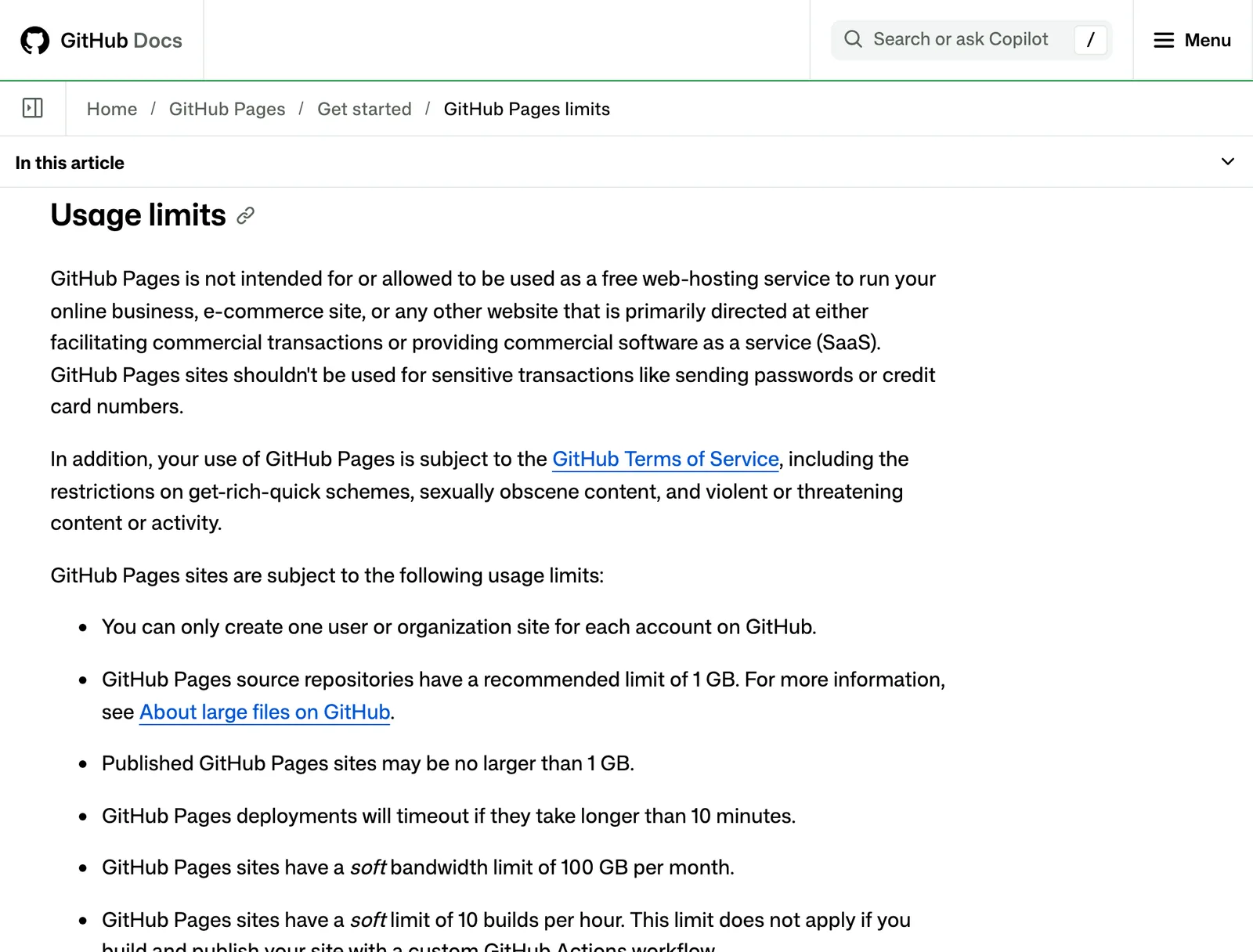
For a new business site on a free plan, we’d pick Cloudflare. Vercel’s free plan rules out commercial use. GitHub Pages rules out running a business.
Cloudflare serves static files free with no such condition, and with no cap on how many requests for them it will answer. Cloudflare’s own docs now say “Start new projects with Workers” rather than Pages, and either serves a static site; ask Claude Code to set it up with Workers. (This site runs on Vercel, so we’re not saying it from loyalty.)
Connecting your own domain#
- Buy the domain. Cloudflare Registrar is the simplest choice if your site is on Cloudflare, but any registrar works.
- Add it to the site in your host’s dashboard, usually under a heading like Custom domains. Or ask Claude Code to do it.
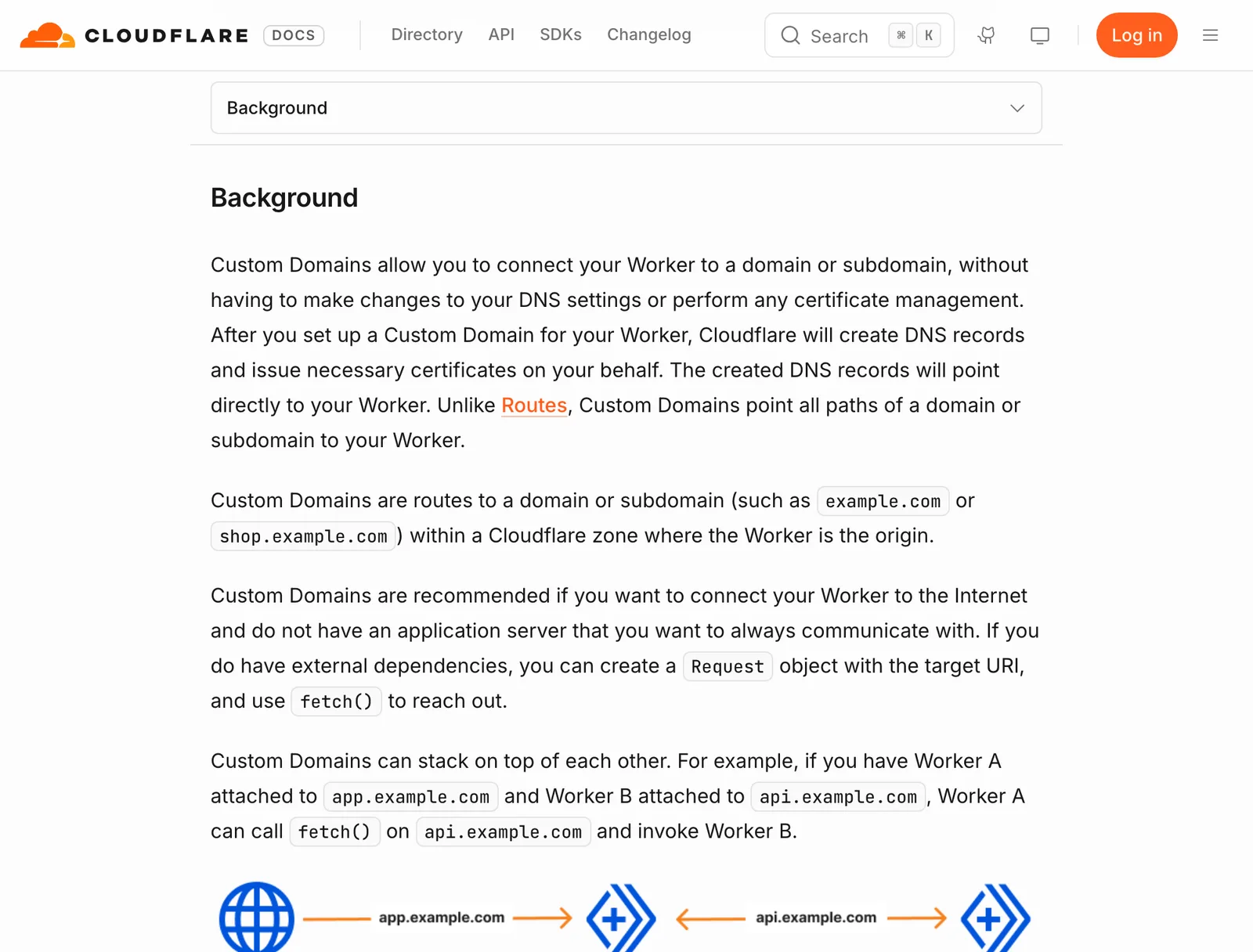
- Add the DNS records the host gives you at your registrar. With the domain and the site both on Cloudflare, you can skip this, because its custom domains docs say it creates the DNS records and the certificate for you.
- Wait, then check. Once the records are live, the host issues the security certificate, and your site loads at your domain with the padlock in the address bar.
Stuck at any point? Paste the host’s exact error into Claude Code and ask what it means and what to change.
Step 7: tell Google it exists#
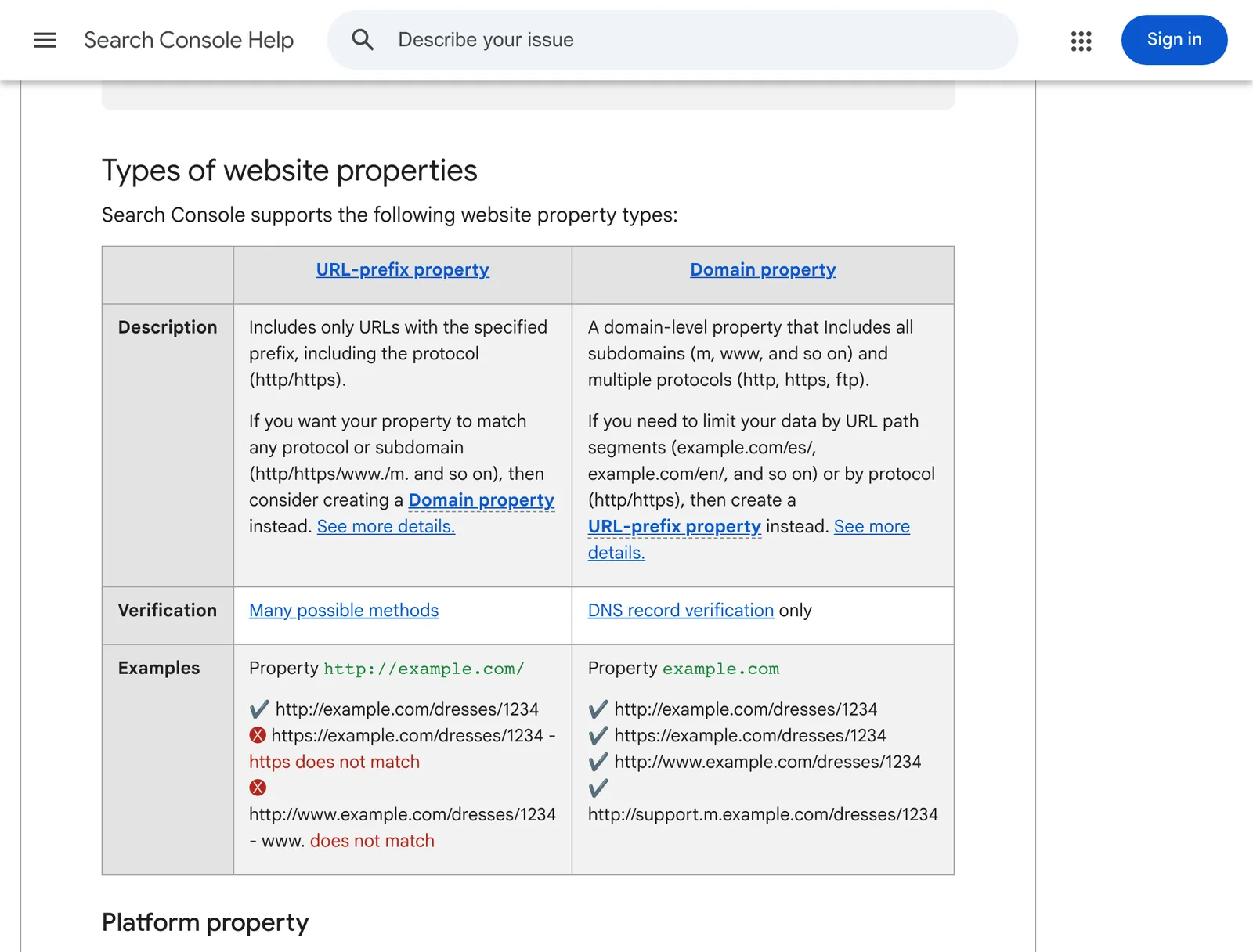
A live site isn’t a found site. Google will get there eventually, but you can tell it straight away, and see what it makes of you, in Google Search Console:
- Add your site as a Domain property. Google’s help page on properties explains that a Domain property covers every version of your address (with and without www, http and https), and it’s verified only by a DNS record.
- Add that verification record at your registrar, the same way you added the hosting records.
- Submit your sitemap, the file that lists every page. If your site runs on Astro, ask Claude Code to add one; Astro’s own command for it is
npx astro add sitemap.
npx astro add sitemap --yesResolved packages.Astro will run the following command: npm i @astrojs/sitemap@^3.7.4Dependencies installed.Astro will make the following changes to your config file: import sitemap from '@astrojs/sitemap'; integrations: [sitemap()]success Added the following integration to your project: @astrojs/sitemapFrom then on, Search Console shows which pages Google has found and which searches they appear for, which is the only honest scoreboard a new site has.
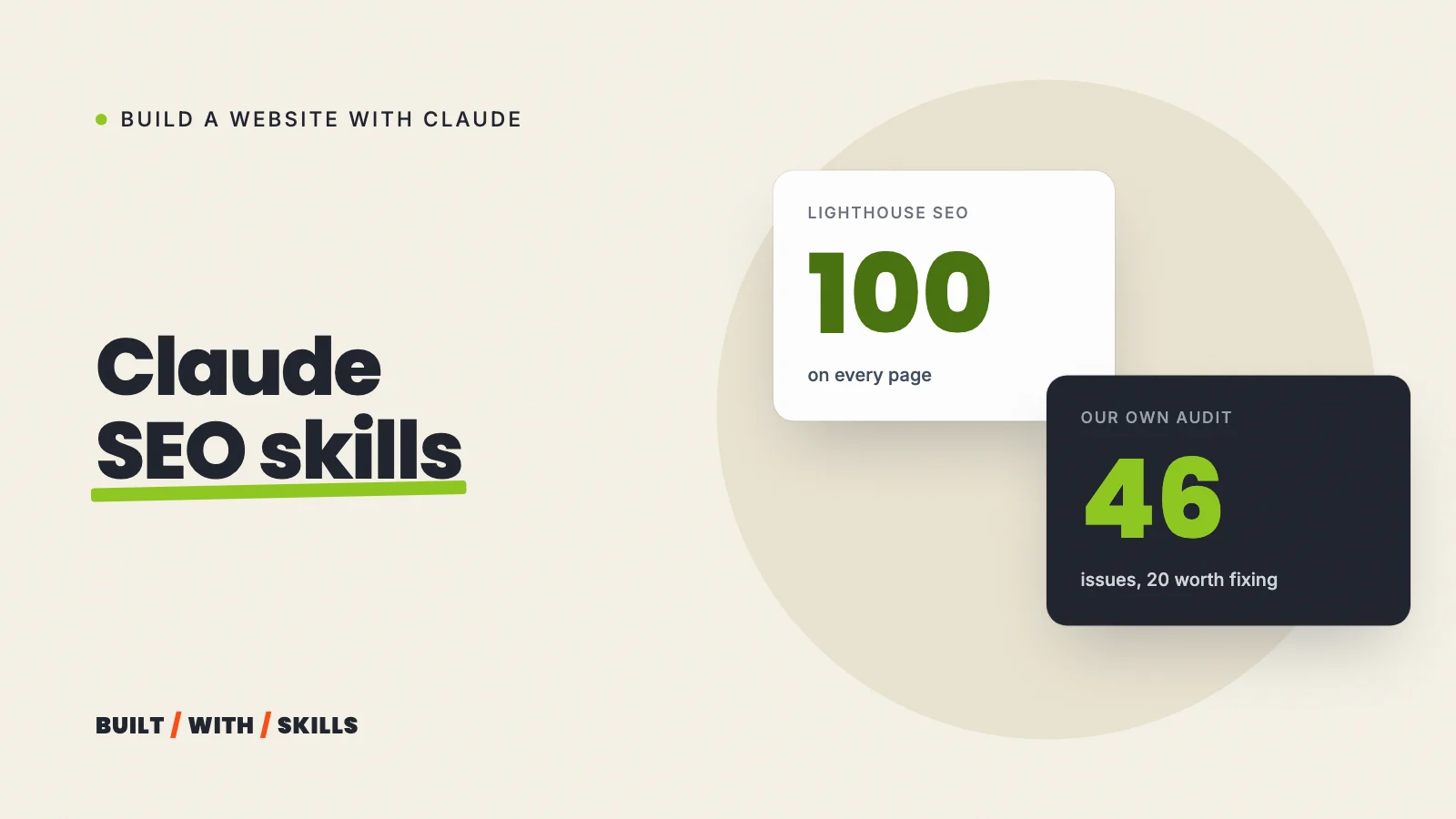
SEO skills can check the site before you submit it, from titles and descriptions to broken links. Claude SEO skills, and what they can and can’t do covers which are worth installing.
What it costs#
You’re looking at three main costs:
- Claude Pro while you build: $20 a month, or $200 a year.
- The domain, once a year, at whatever your registrar charges.
- Hosting: nothing on Cloudflare’s free plan, or $20 a month if you want a business site on Vercel.
You can pay for Claude for the month or two of the build and then decide whether to keep it for changes, and either way the site keeps running, because the files sit in your own folder and your own GitHub account rather than inside Claude. Is Claude Code free? has the full breakdown, plan by plan.
When it goes wrong#
It will. These are the stalls we’d expect, and the way out of each:
- Claude says it’s done, and it isn’t. Ask “did you do everything I asked? List anything you skipped”, then check the page yourself.
- An error message you don’t understand. Copy the whole thing into Claude Code and ask what it means in plain English, and what it’s going to change to fix it.
- Going round in circles on the same bug. Start a fresh conversation with
/clearand describe the problem from the beginning, including what you’ve already tried, because a clean conversation without a pile of failed attempts in it often spots the problem straight away. - You hit your usage limit. Every plan has one. Type
/usageto see where you stand, and start each new task with/clear, since long conversations use it up faster. - The live site fails to build. Open the host’s deploy log, copy the error, and give it to Claude Code. The site on your laptop and the build on the host are separate, so “it works here” doesn’t mean it works there.
Claude Code or a builder like Lovable?#
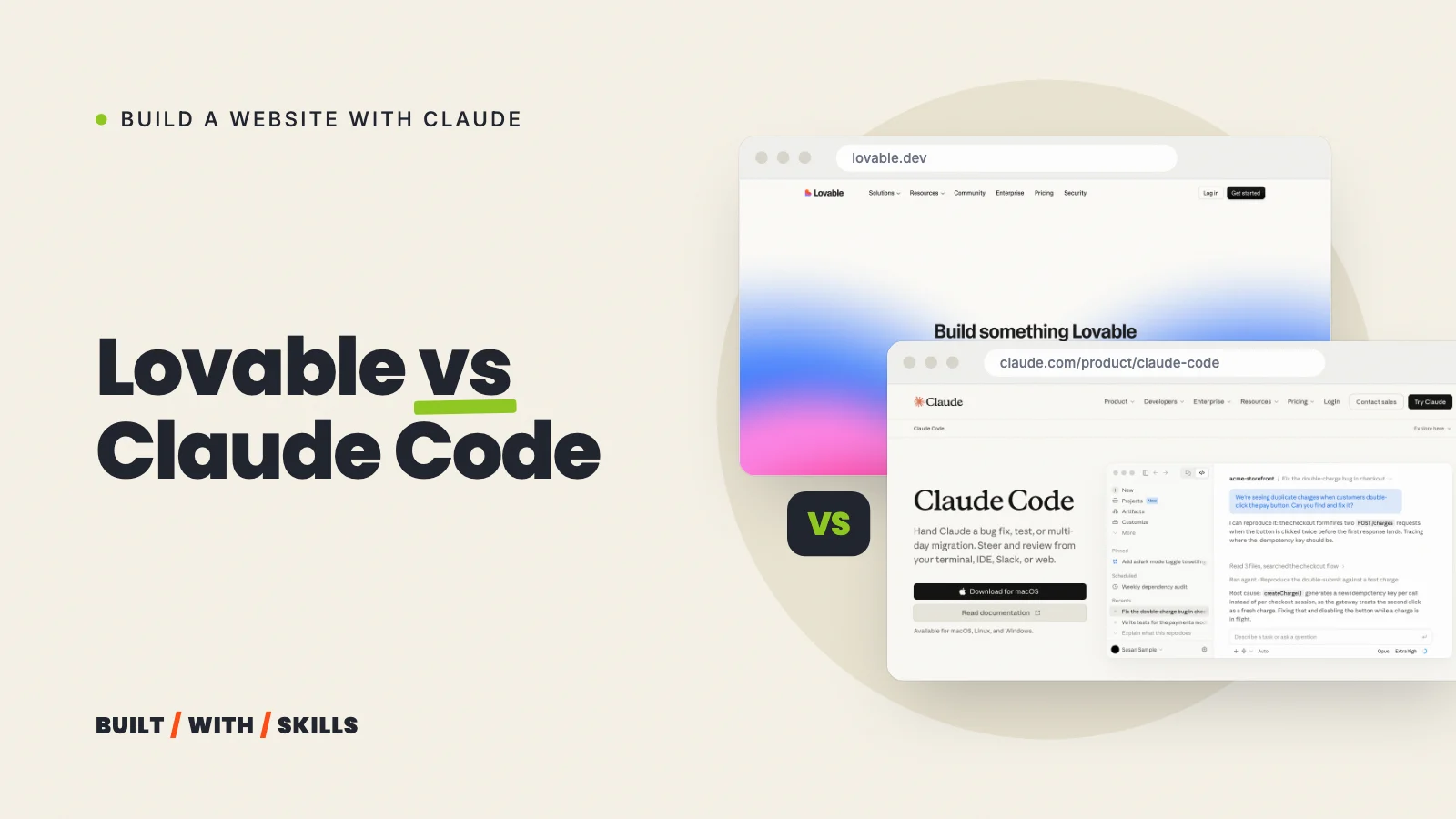
Browser builders such as Lovable get you a working app quickly and host it for you, and they’re at their strongest on apps with logins and databases. But for a content website you want to own outright, rank on Google and keep changing for years, we’d choose Claude Code. Lovable vs Claude Code compares the two.
So there you have it, that’s pretty much all it takes.
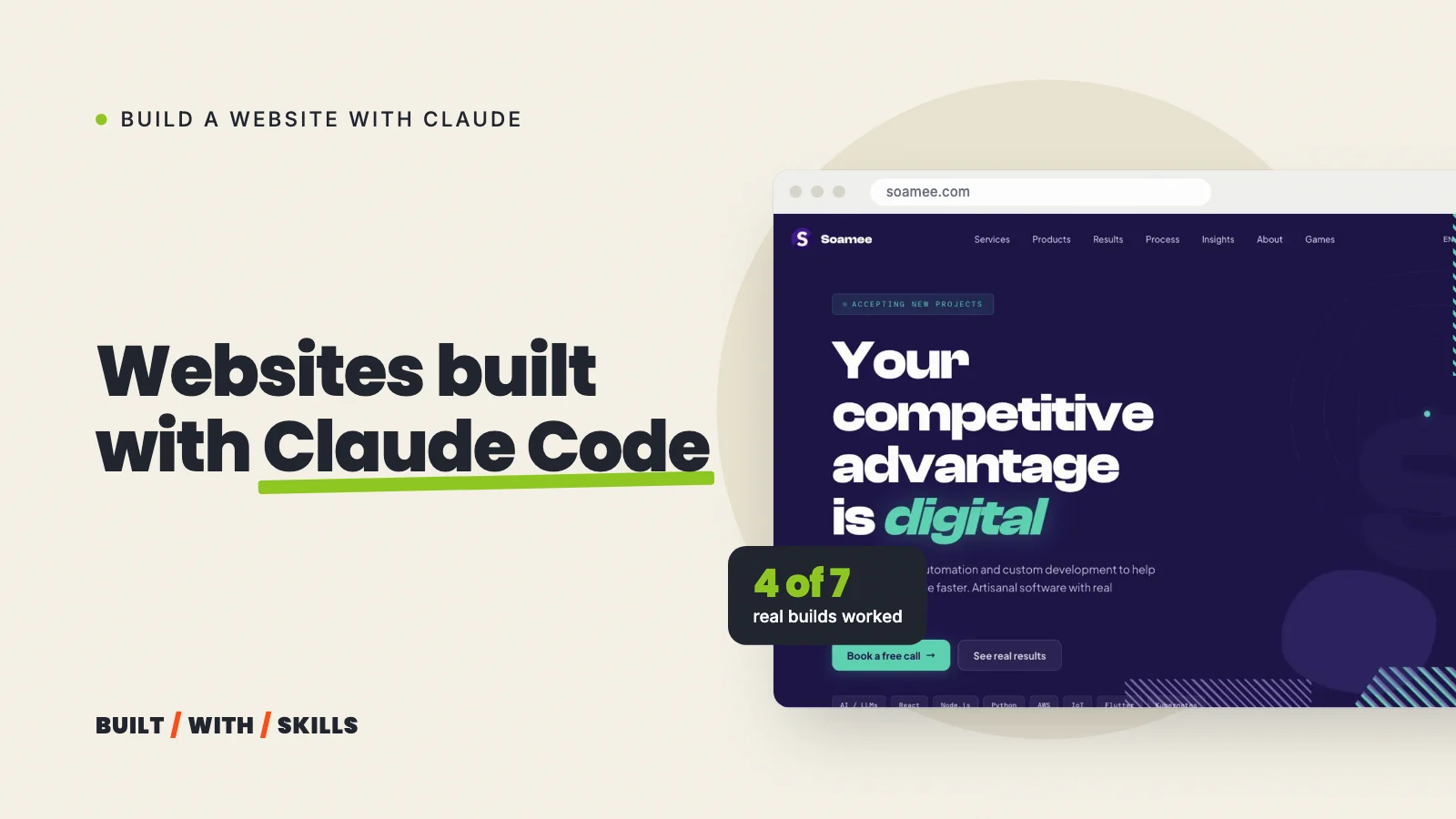
Want to see where it ends up? Websites built with Claude Code looks at seven real builds by other people, what worked and what broke. And if you’d rather skip the building, our done-for-you website uses the same process on your domain and then hands it over.