
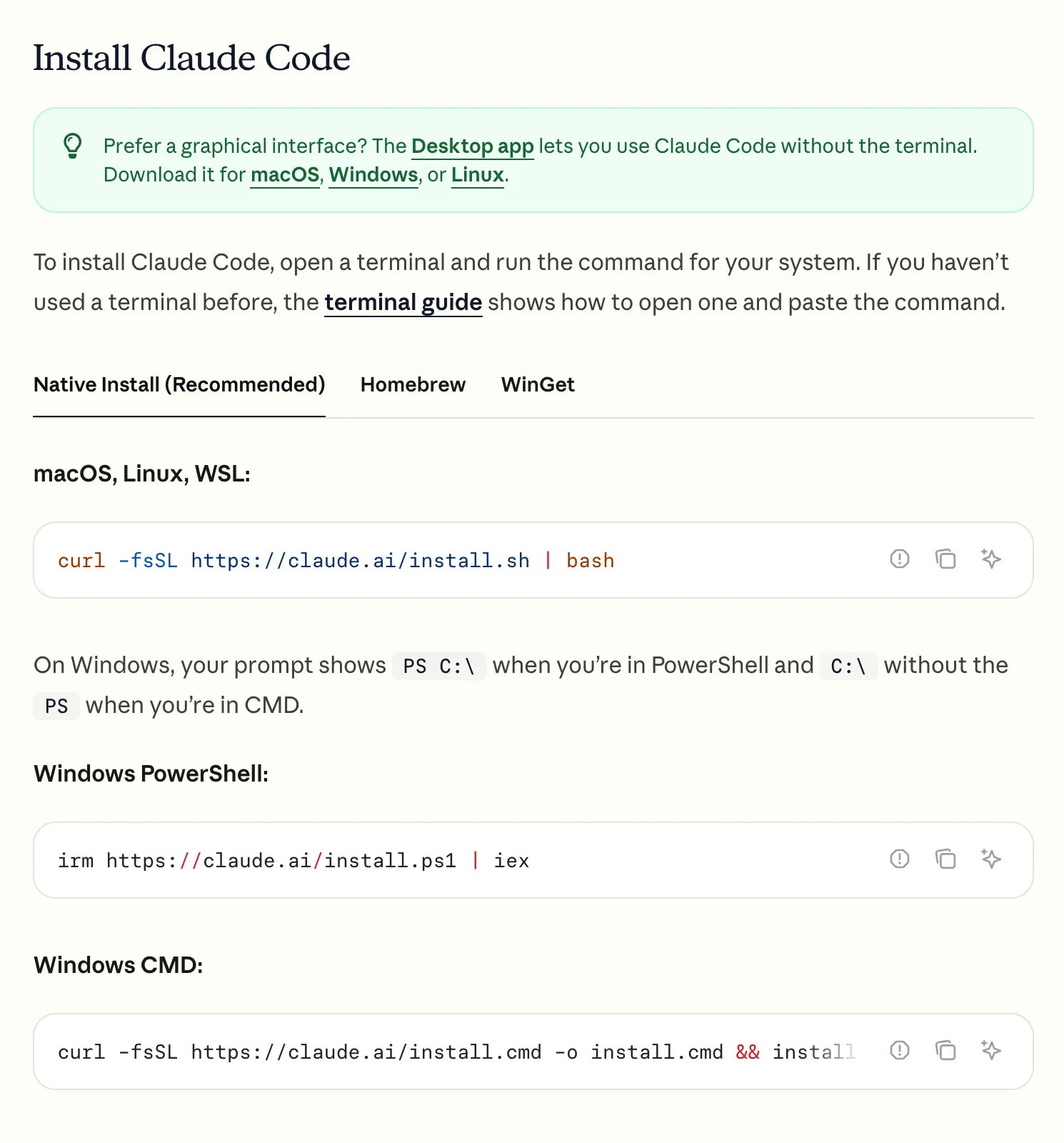
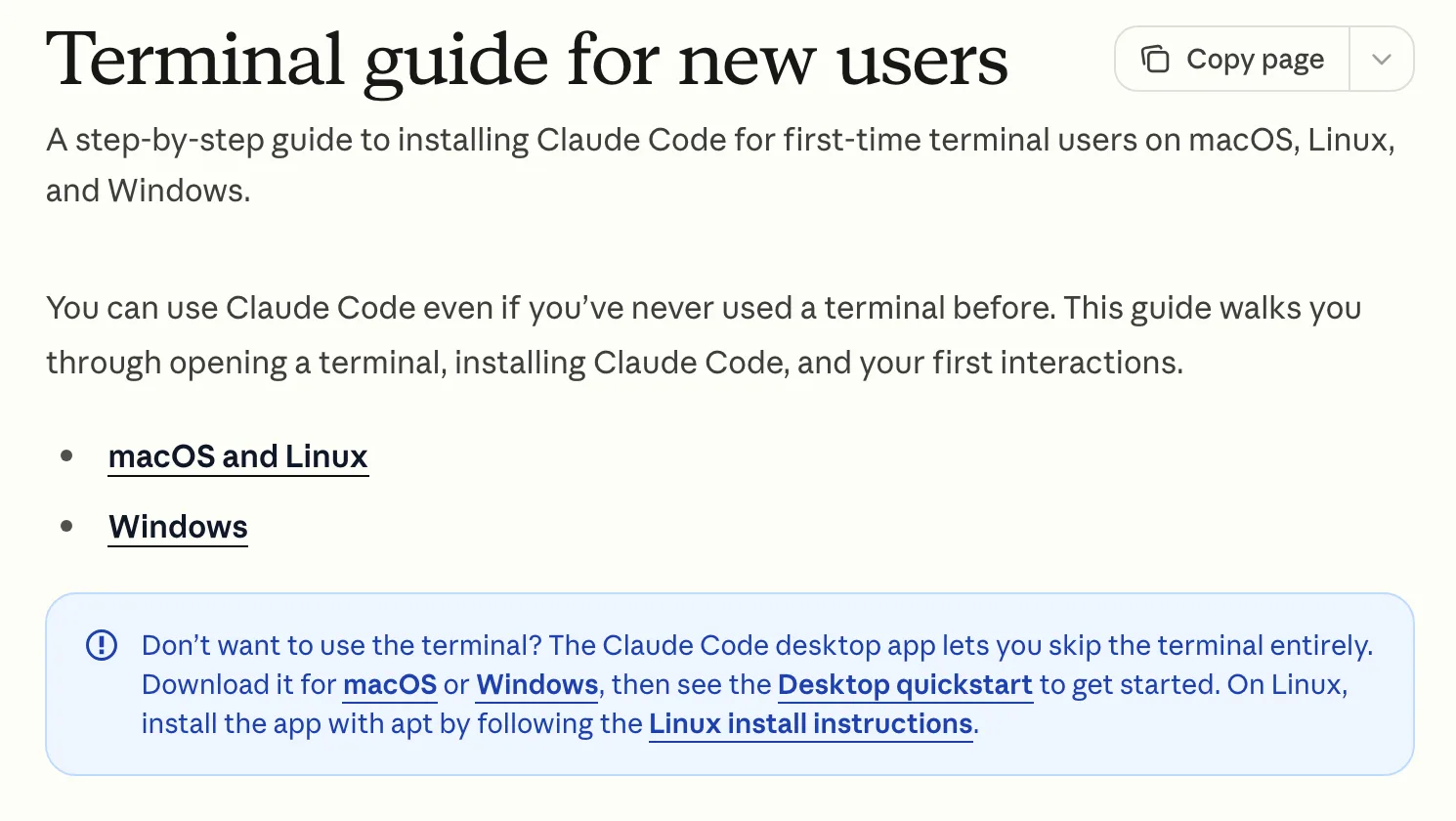
You can install Claude Code two ways: download the Claude desktop app, which has Claude Code built in as its Code tab, or paste one command into a terminal.
Never opened a terminal? Get the desktop app and you’re done in about the time it takes to download, because there’s no separate Claude Code install, no Node.js and no command to type. The terminal route is for people who’d rather type claude in a folder, and it’s the one that throws up the errors this guide spends most of its time on.
It’s the same Claude Code underneath either way, so you can start with one and switch later without losing anything. Every command below comes from Anthropic’s setup docs, checked in October 2026.
What you need first#
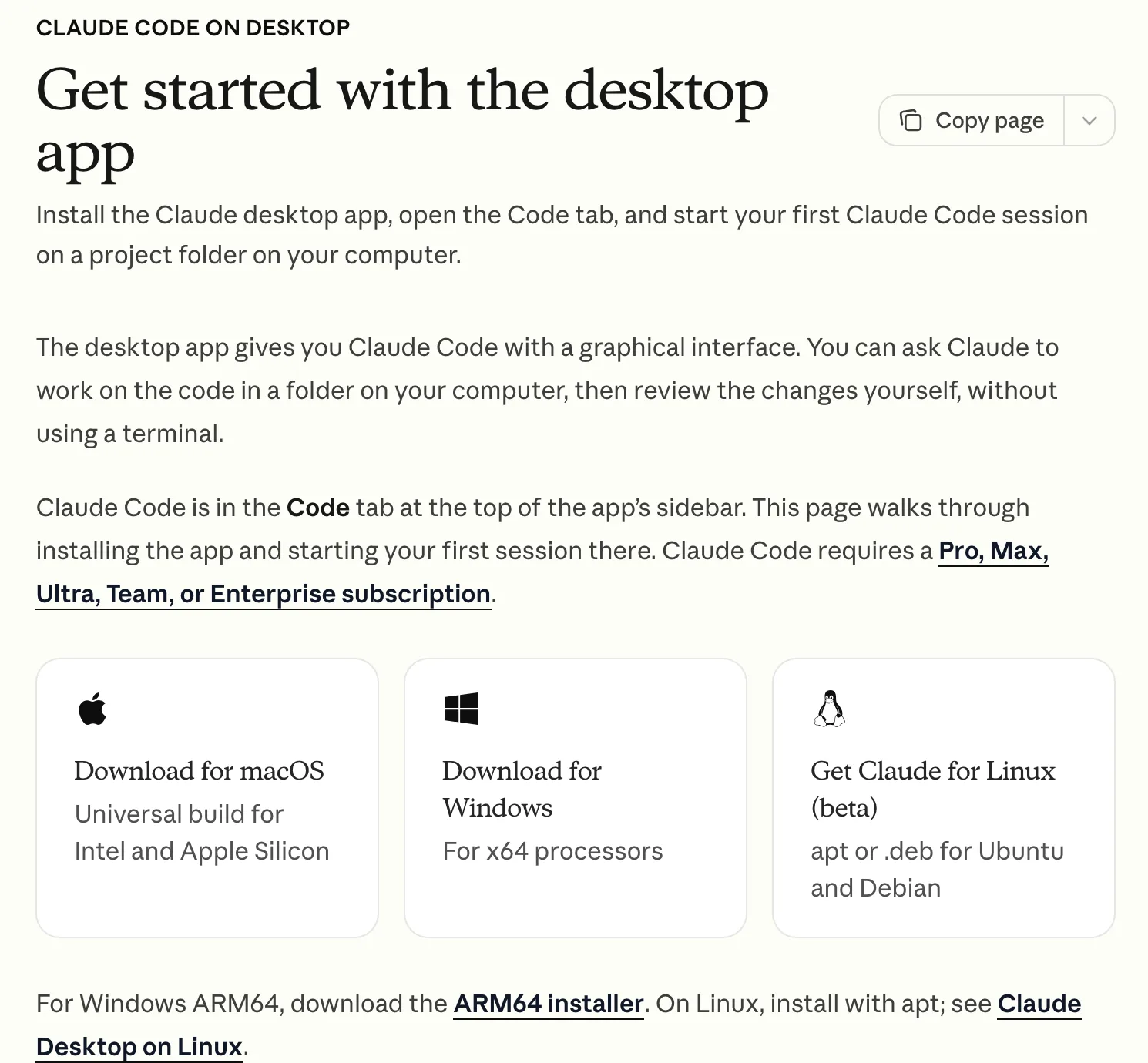
- A paid Claude plan. Pro, Max, Team or Enterprise, or a Claude Console account. The free plan doesn’t include Claude Code, and is Claude Code free? compares what each plan costs.
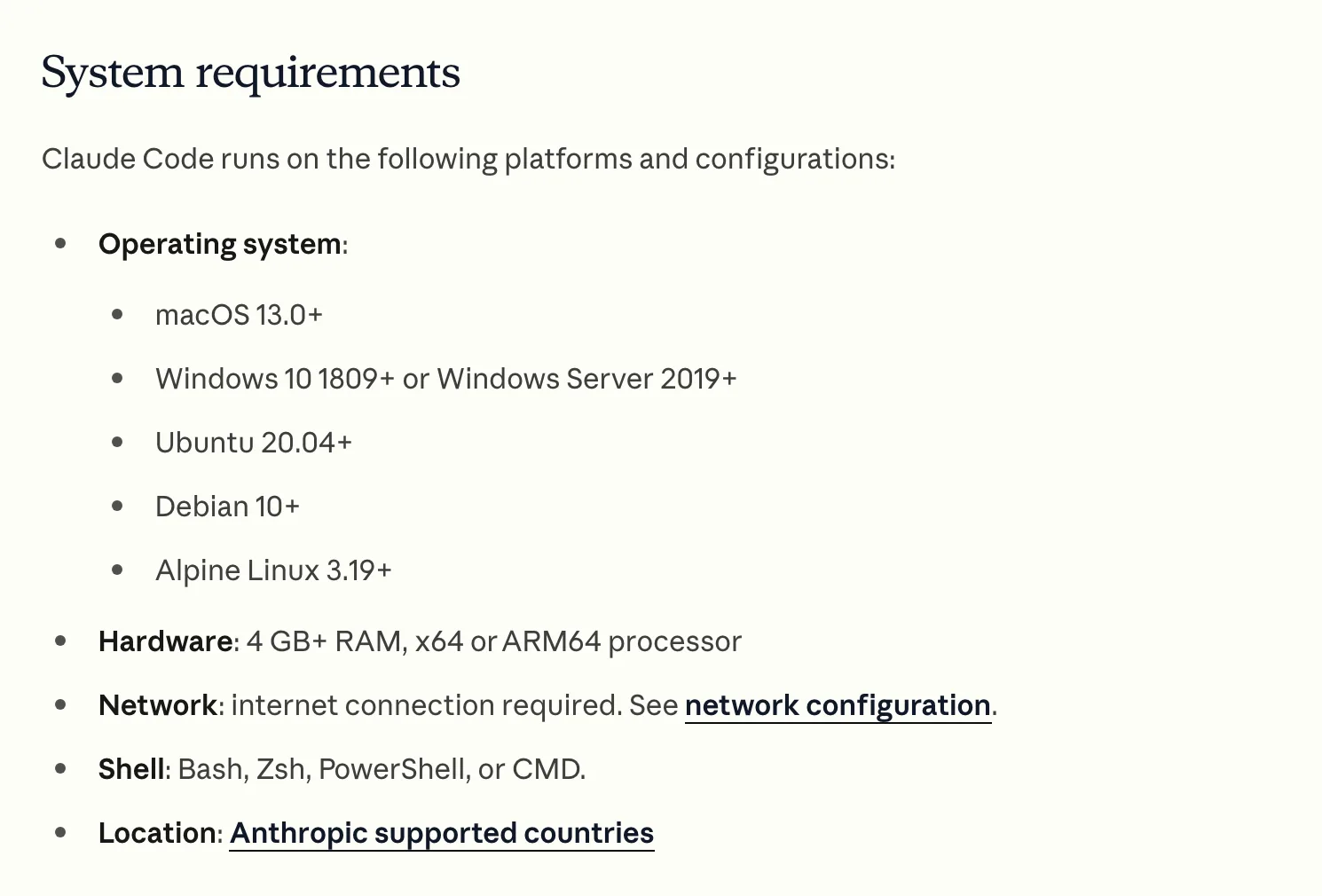
- A supported computer. macOS 13 or later, Windows 10 (version 1809) or later, or Ubuntu 20.04, Debian 10 or Alpine 3.19 and up, with at least 4 GB of memory.
- A supported country. Claude Code only installs where Anthropic operates; the supported countries list is the one to check if an install fails for no obvious reason.
- An internet connection, because the model runs on Anthropic’s servers rather than your computer.
The easy way: the desktop app#
Download the Claude app from Anthropic’s desktop quickstart. There’s a universal Mac build for Intel and Apple Silicon, Windows builds for x64 and ARM64, and a Linux version in beta that installs with apt on Ubuntu and Debian.
Install it and sign in, then click Code at the top of the sidebar. That’s the whole install, with nothing else to set up for Claude Code itself. If you see a prompt to upgrade instead, you’re on the free plan.
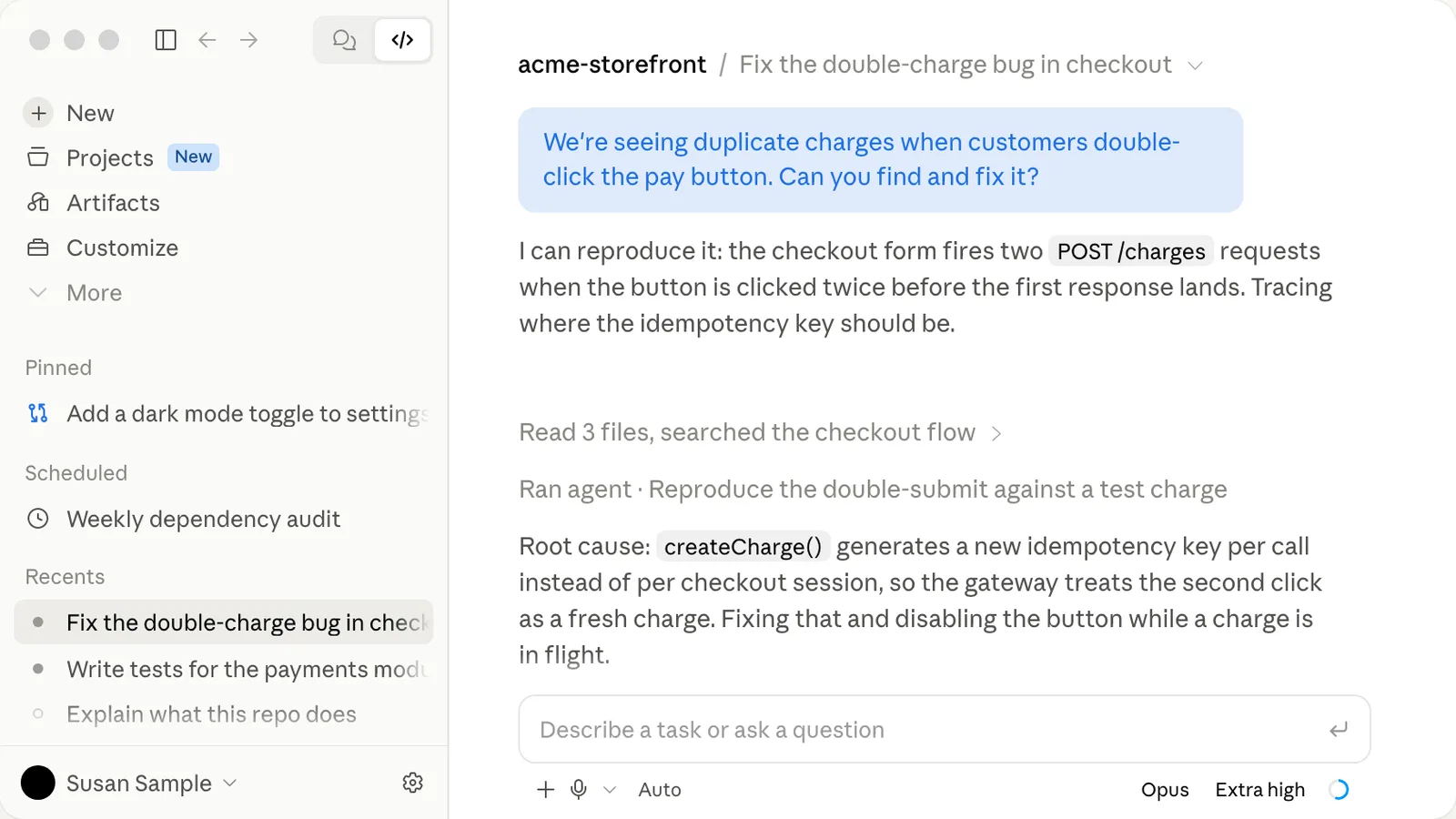
What you do next (picking a folder, choosing a permission mode, writing the first prompt) is covered step by step in Claude Code for beginners, so we won’t repeat it here.
Install it in a terminal#
Step 1: Open a terminal#
On a Mac, press Cmd + Space, type Terminal and press Enter. On Windows, press Win + X and choose Windows PowerShell (or Terminal), which is the window you want rather than the older Command Prompt, for reasons that become clear in a moment. On Linux, Ctrl + Alt + T opens one on most systems.
Step 2: Paste the command for your system#
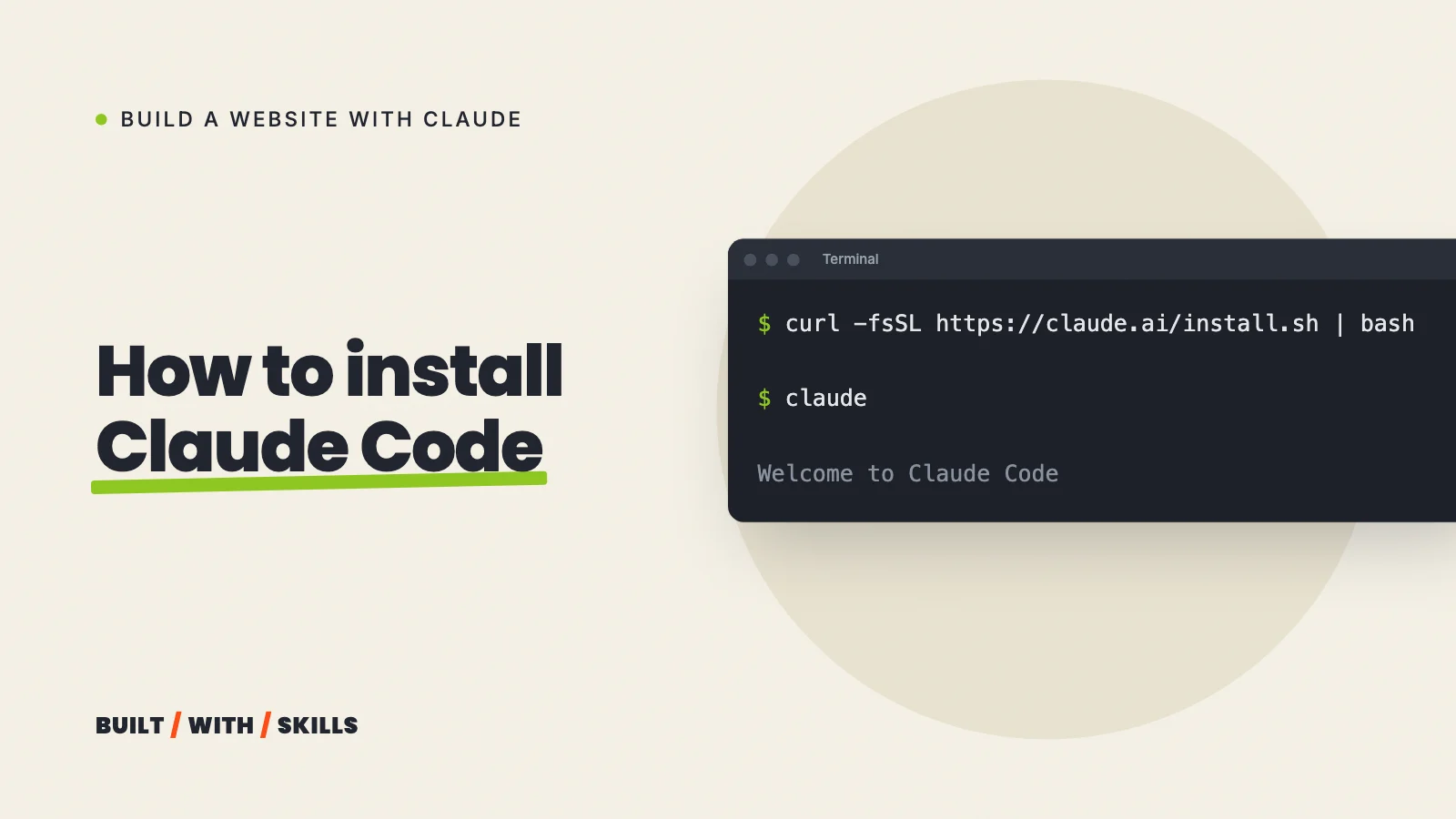
Mac or Linux:
curl -fsSL https://claude.ai/install.sh | bashWindows PowerShell (you don’t need to run it as Administrator):
irm https://claude.ai/install.ps1 | iexWindows has two command windows that look alike and take different commands. Your prompt starts with PS C:\ in PowerShell, and with plain C:\ in the older Command Prompt (CMD), which needs this version instead:
curl -fsSL https://claude.ai/install.cmd -o install.cmd && install.cmd && del install.cmdPaste the Mac command into PowerShell by mistake and you’ll see this instead:
curl -fsSL https://claude.ai/install.sh | bashA parameter cannot be found that matches parameter name 'fsSL'PowerShell wants its own commandirm https://claude.ai/install.ps1 | iexThe installer shows no progress bar while it downloads, so it can look stuck when it isn’t. Leave the window alone until it says Claude Code successfully installed!
curl -fsSL https://claude.ai/install.sh | bashno progress bar while it downloads, so leave it aloneClaude Code successfully installed!close this window, open a new oneclaude --version2.1.211 (Claude Code)Step 3: Open a new window and check it#
The window you installed from doesn’t know about Claude Code yet, so close it, open a fresh one and run:
claude --versionA working install prints a version number such as 2.1.211 (Claude Code). If you get command not found instead, jump to the fixes further down.
On Windows, Anthropic also recommends installing Git for Windows, because Claude Code uses its Bash shell to run commands and falls back to PowerShell without it. You’ll want Git for saving versions of your website anyway.
Other ways to install it#
Already use one of these? They work, with one trade-off:
- Homebrew (Mac):
brew install --cask claude-code - WinGet (Windows):
winget install Anthropic.ClaudeCode - npm, if you have Node.js 22 or later:
npm install -g @anthropic-ai/claude-code(never withsudo) - VS Code or Cursor: search for “Claude Code” in the Extensions view. The extension brings its own copy of Claude Code for its chat panel, but it doesn’t put
claudein your terminal.
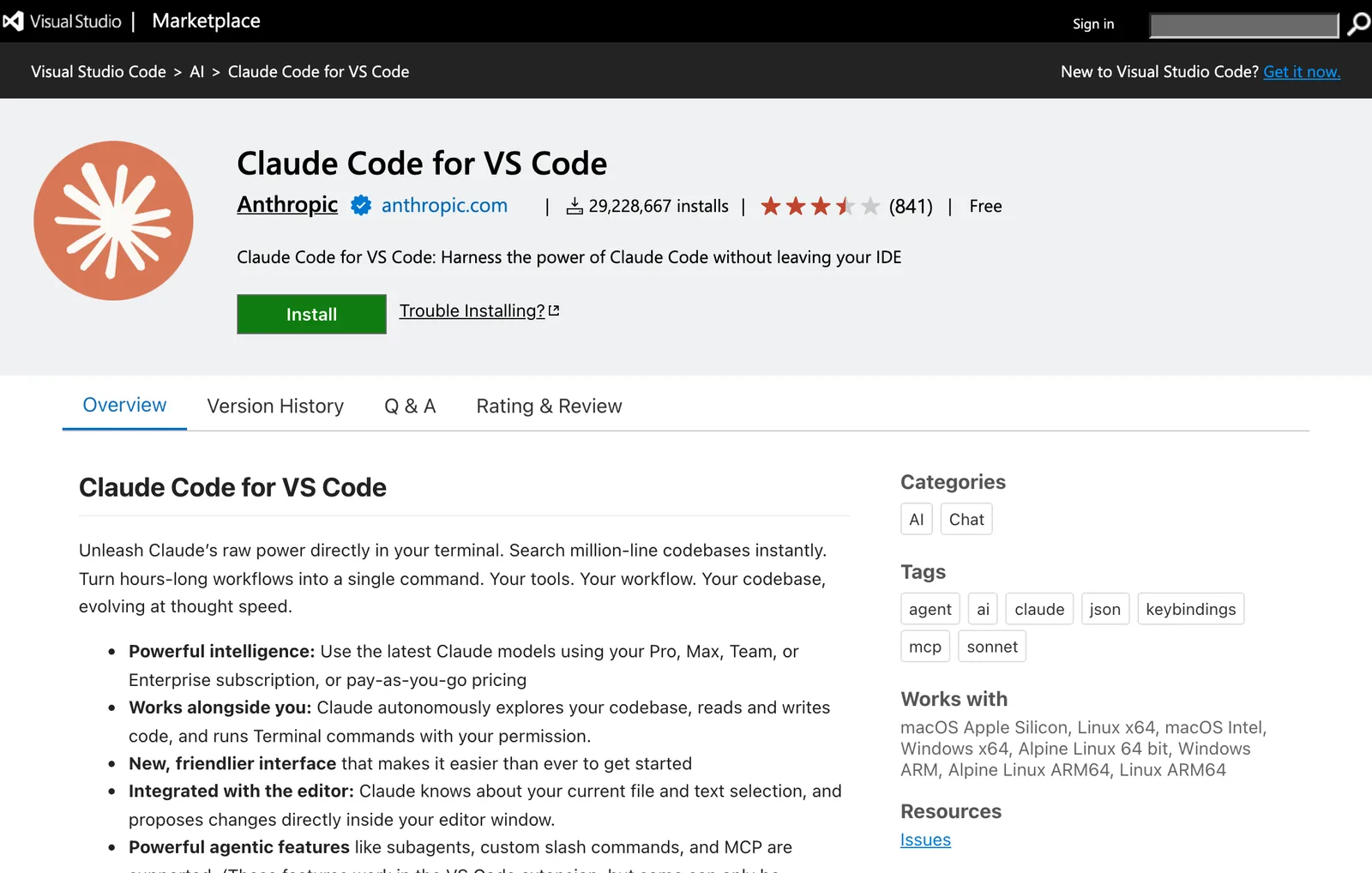
The trade-off is updates. Only the official installer updates itself in the background, and the Homebrew version deliberately runs about a week behind the latest release. Unless you already manage your tools with one of these, use the official installer.
npm view @anthropic-ai/claude-code engines{ node: '>=22.0.0' }npm view @anthropic-ai/claude-code dist-tags{ stable: '2.1.309', next: '2.1.316', latest: '2.1.316' }curl -s https://formulae.brew.sh/api/cask/claude-code.json | jq -r .version2.1.309Start it and sign in#
Make a folder for your project and move your terminal into it: type cd and a space, drag the folder onto the terminal window so its path appears, and press Enter. Then type:
claudeThe first time, a browser window opens so you can sign in with your Claude account. If it doesn’t, press c to copy the sign-in link and paste it into your browser yourself, which also gets you past a link that wraps across lines and won’t click. Once the terminal says the login worked, you’re in.
cd ~/my-websiteclaudea browser window opens so you can sign inno browser? press c to copy the login URL and paste it in yourselfLogin successfulpress Enter to continue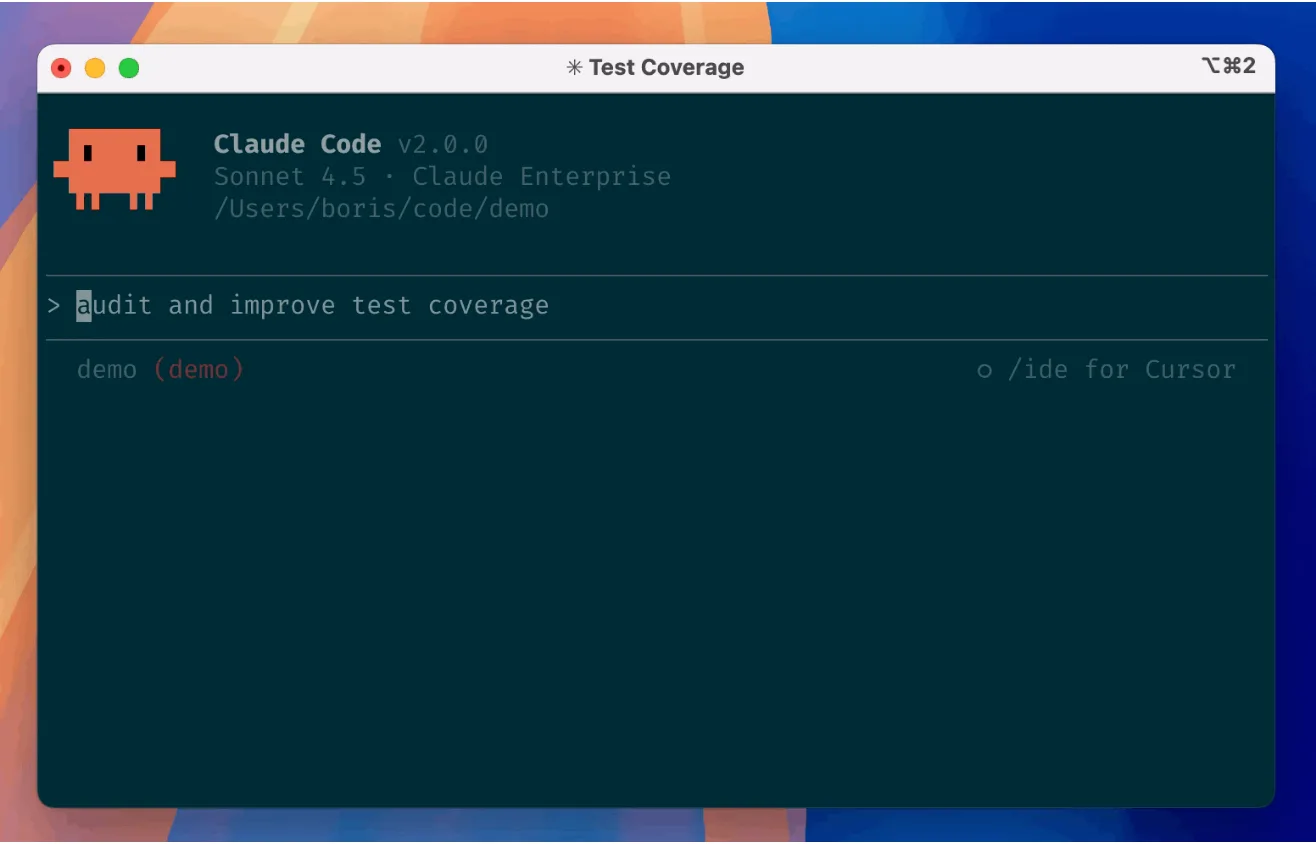
Type /status to check which account it’s using. You want to see your Pro, Max or Team plan there.
One question to say no to. If an old tutorial had you set an ANTHROPIC_API_KEY on your computer, Claude Code asks once whether to use it and remembers the answer, and a yes means it bills that API account by the token instead of using the plan you’re paying for.
Fixing the errors most first installs hit#
Most failed installs come down to a handful of messages. Find yours:
| What you see | What it means and what to do |
|---|---|
command not found: claude or 'claude' is not recognized |
The install worked but your terminal can’t find it. Open a new window first. Still missing on a Mac? Run echo 'export PATH="$HOME/.local/bin:$PATH"' >> ~/.zshrc and then source ~/.zshrc |
'irm' is not recognized |
You’re in CMD, not PowerShell. Open PowerShell, or use the CMD command above |
The token '&&' is not a valid statement separator |
The opposite: you pasted the CMD command into PowerShell |
A parameter cannot be found that matches parameter name 'fsSL' |
You pasted the Mac command into Windows PowerShell |
syntax error near unexpected token '<', or a 403 |
The download came back as a web page. If the output mentions “App unavailable in region”, Claude Code isn’t available in your country; otherwise wait a few minutes and retry, or try Homebrew or WinGet |
| The browser sign-in never finishes | Press c, open the link yourself, and finish quickly, because an Invalid code error means the code expired |
Typing claude opens the desktop app (Windows) |
An older desktop app is taking over the command. Update the desktop app |
Something else? Run claude doctor in your terminal. It checks the install and your settings without starting a session, and suggests fixes for anything it finds.
Anthropic’s installation troubleshooting page matches lots more error messages to fixes, and if a sign-in keeps failing, /logout followed by a fresh claude clears out a stuck login.
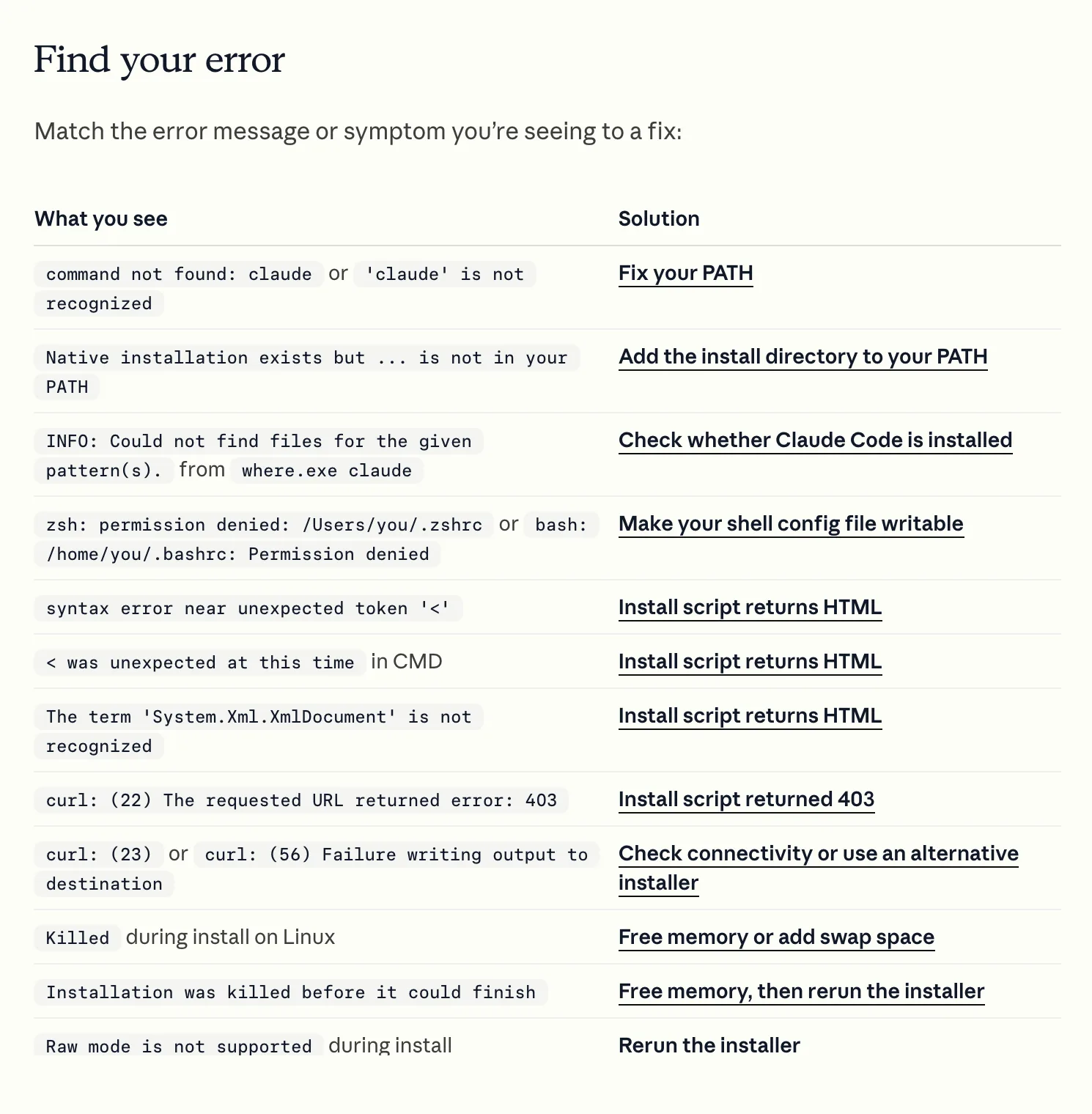
The most common one, the Mac version of command not found, looks like this, and so does the fix from the table:
claude --versionzsh: command not found: claudeecho 'export PATH="$HOME/.local/bin:$PATH"' >> ~/.zshrcsource ~/.zshrcclaude --version2.1.211 (Claude Code)Updating and removing it#
The official install updates itself in the background, so there’s nothing to do, although claude update fetches the latest version straight away if you don’t want to wait. Homebrew needs brew upgrade claude-code, WinGet needs winget upgrade Anthropic.ClaudeCode, and npm needs npm install -g @anthropic-ai/claude-code@latest.
To remove an official install on a Mac or Linux, delete its two locations:
rm -f ~/.local/bin/claude
rm -rf ~/.local/share/claude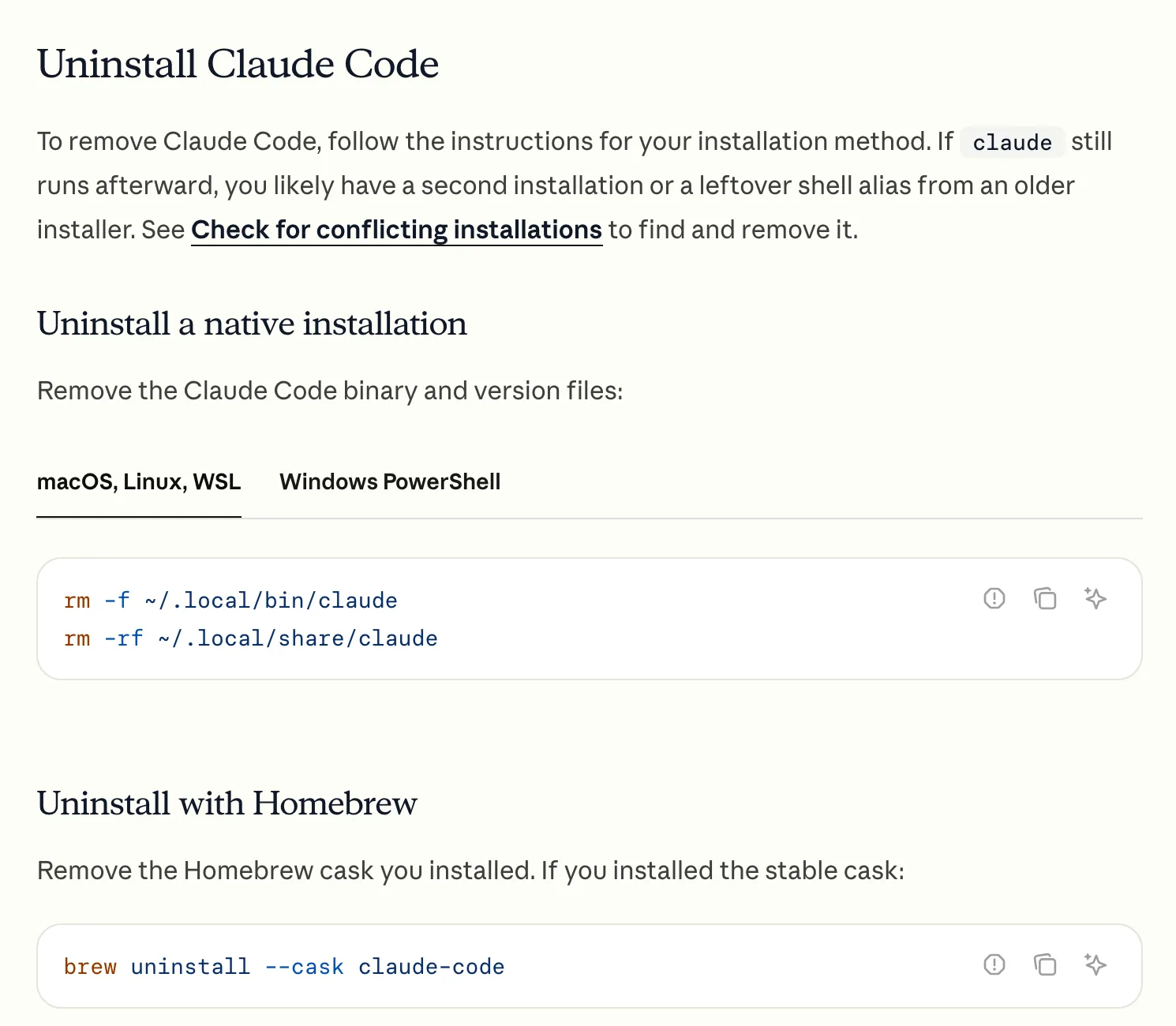
Your projects live in their own folders and aren’t touched.
That’s Claude Code installed. Next, Claude Code for beginners takes you through a first session without breaking anything, what CLAUDE.md is covers the file worth setting up straight away, and our guide to building a website with Claude takes it from there to a live site.